設定
設定
 迅速な配送
迅速な配送
 送料は無料
送料は無料
 Incoterms
 お支払い方法


 マーケットプレイス製品

Move a Stepper Motor NEMA 17 to an Exact Position With a Button
2026-05-27 | By Ron Cutts
License: GNU Lesser General Public License Microcontrollers Motors Pushbutton Arduino
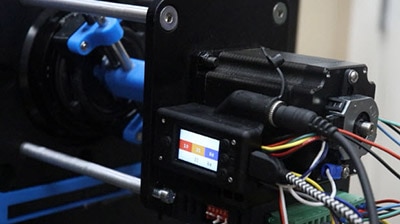
In this tutorial, we will learn how to move a NEMA 17 stepper motor for a certain number of steps and then, with a push of a button, repeat it again.
Watch the video!
Learn more about Visuino: What is Visuino
What You Will Need
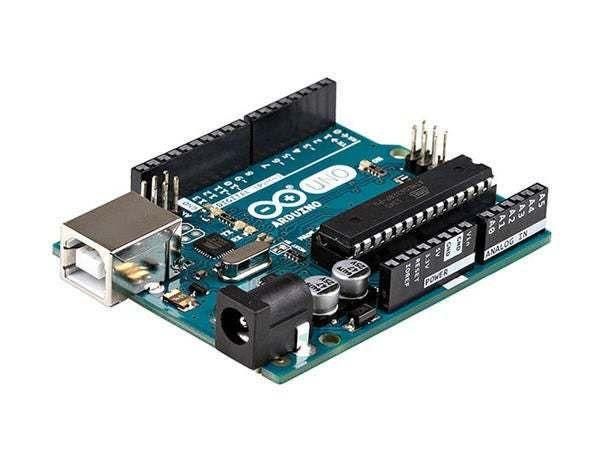
Arduino UNO (Or any other Arduino)
Visuino program: Download Visuino
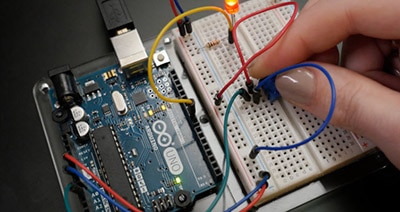
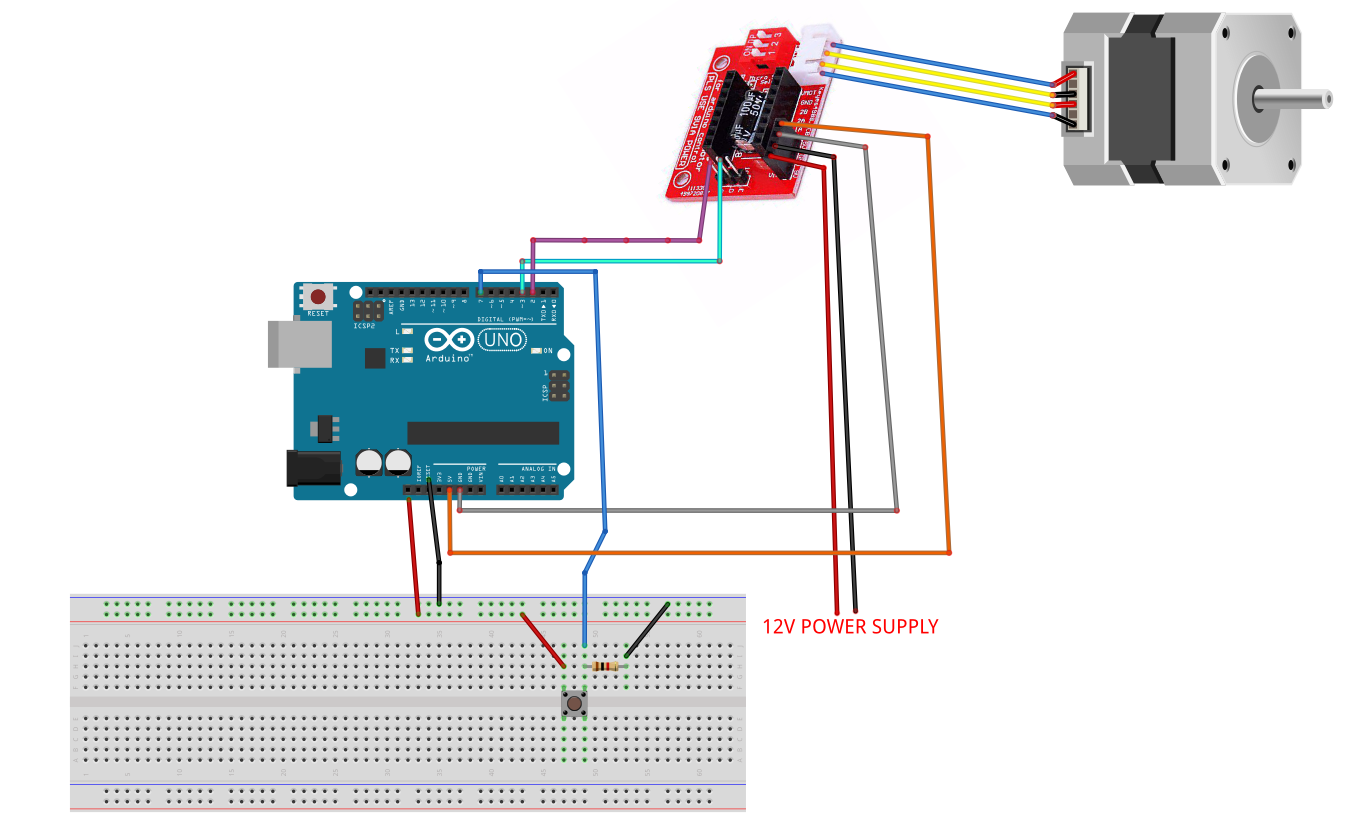
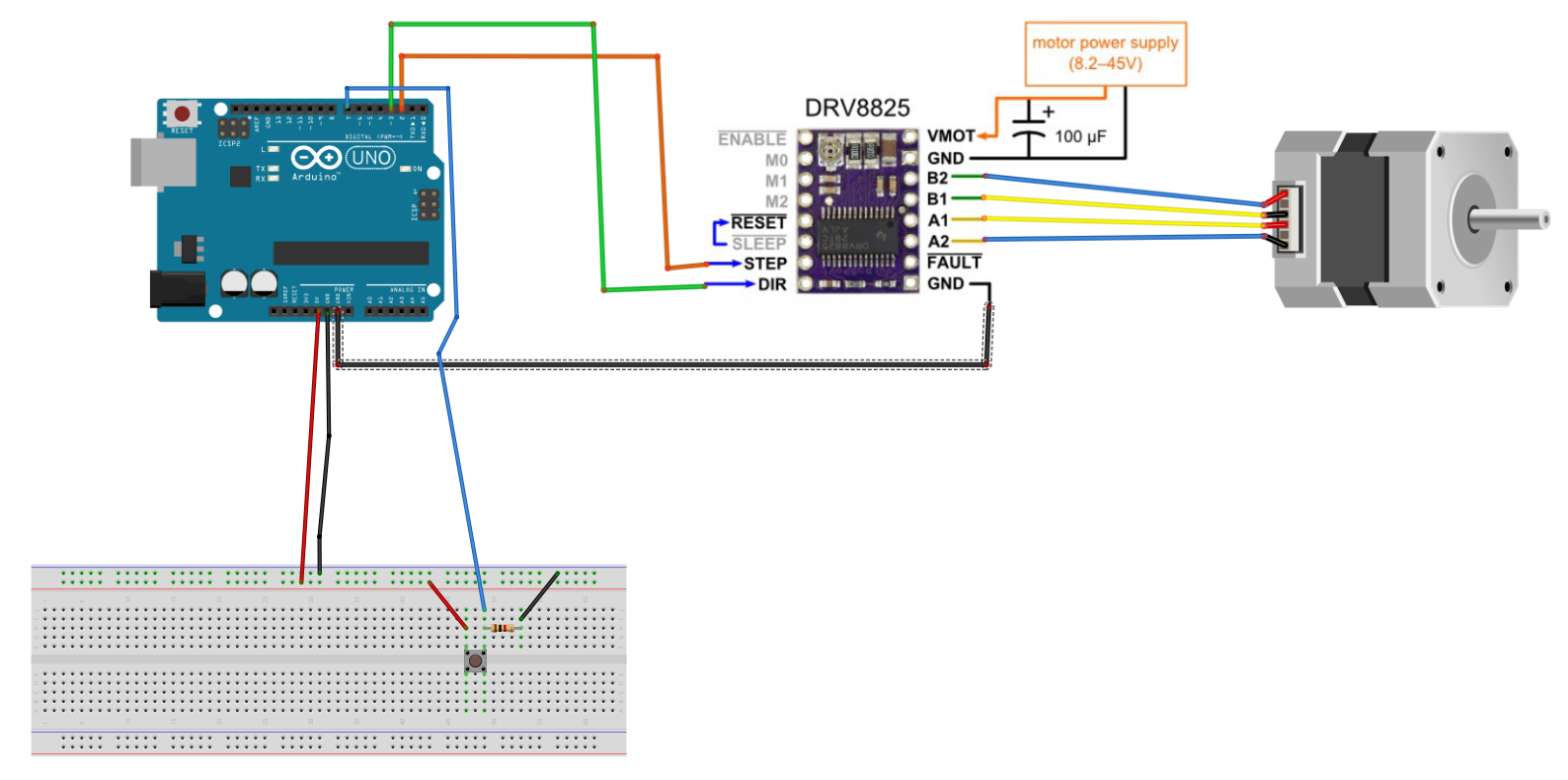
The Circuit
Arduino Digital Pin 2 will be used for the steps
Arduino Digital Pin 3 will be used for motor direction.
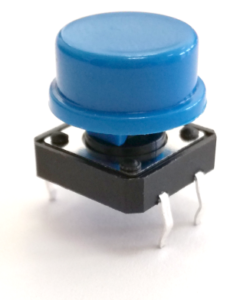
Connecting Button:
Connect Arduino Digital pin [7] to the button on the breadboard and to the Resistor
Connect the other side of the resistor to the breadboard pin [GND]
Connect the other pin of the button to the breadboard positive pin [5V]
Connect Arduino pin [5V] to breadboard positive pin [Red line]
Connect Arduino pin [GND] to breadboard negative pin [Black line]
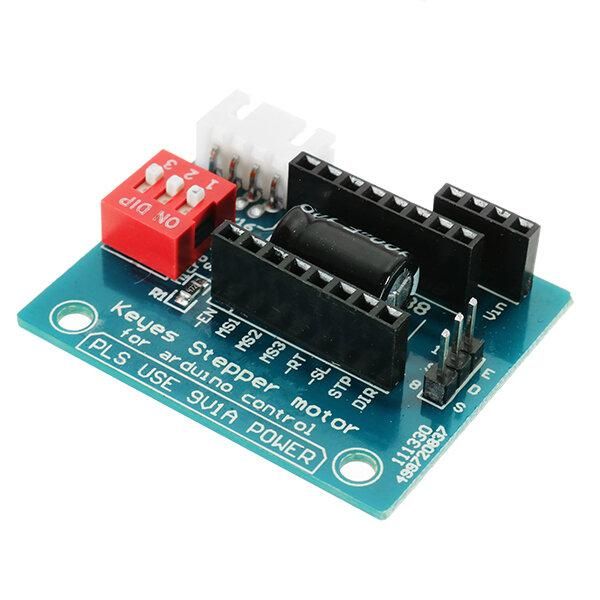
If using a Stepper Motor Driver Shield:
Connect the Motor Shield GND pin to the Arduino negative pin [GND]
Connect the Motor Shield [5V] pin to the Arduino positive pin [5V]
Connect the Motor Shield GND pin to the power supply negative pin [GND]
Connect the motor shield [9V] pin to the power supply's positive pin [+]
Connect the Motor Shield pin[S] to the Arduino digital pin [2]
Connect the Motor Shield pin[D] to the Arduino digital pin [3]
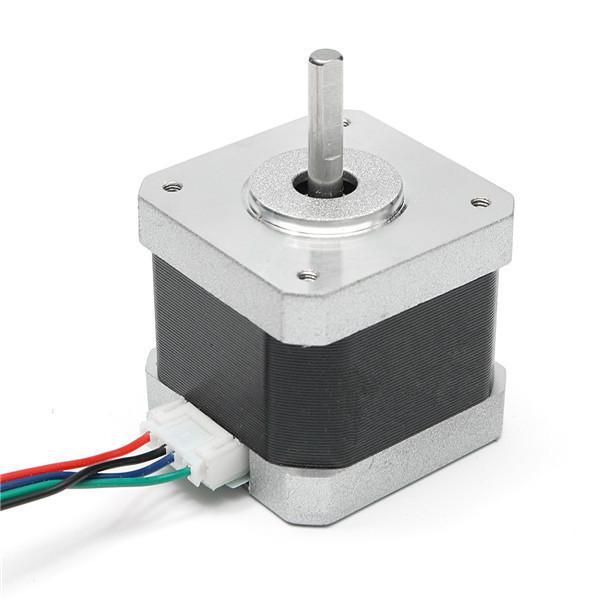
Connect the stepper motor as shown in the picture.
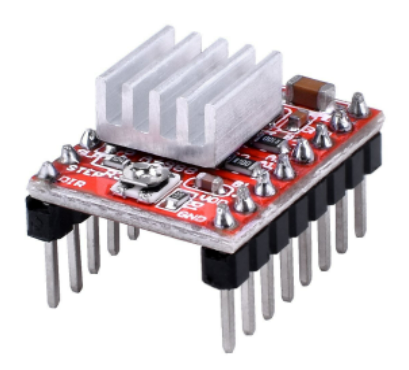
If using a Stepper Motor Driver 8825:
Connect the DRV8825 GND pin to the Arduino negative pin [GND]
Connect the DRV8825 DIR pin to Arduino digital pin [3]
Connect the DRV8825 STEP pin to Arduino digital pin [2]
Connect the Power Supply for the motor to the DRV8825 VMOT and GND
Connect the Capacitor across VMOT and GND
Connect the stepper motor as shown in the picture.
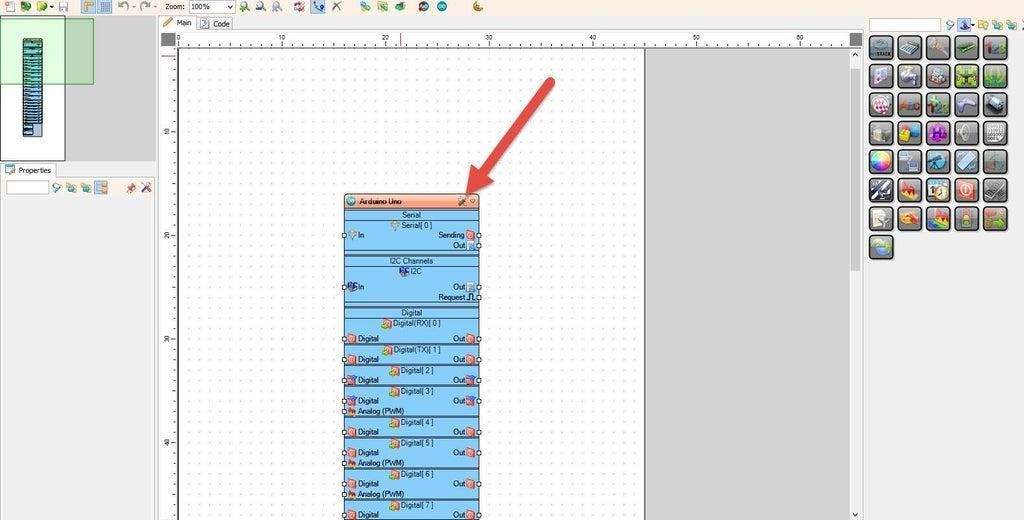
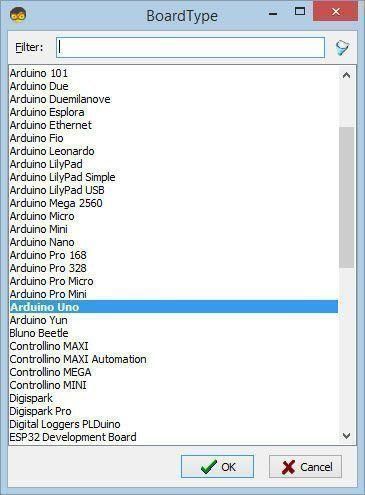
Start Visuino, and Select the Arduino UNO Board Type
Start Visuino as shown in the first picture. Click on the "Tools" button on the Arduino component (Picture 1) in Visuino. When the dialog appears, select "Arduino UNO" as shown in Picture 2
In Visuino, Add Components
Add "Debounce Button" component
Add "Counter" component
Add "Pulse Generator" component
Add "Unsigned To Digital" component
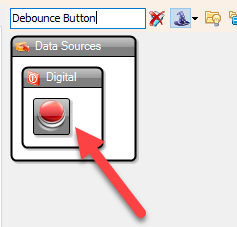
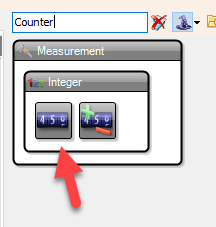
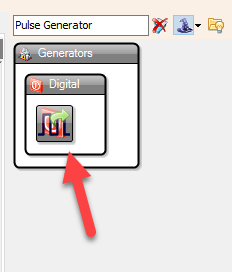
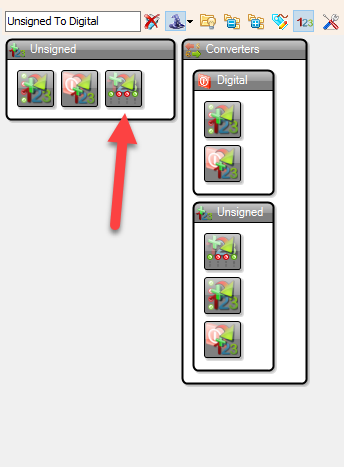
In Visuino Set Components
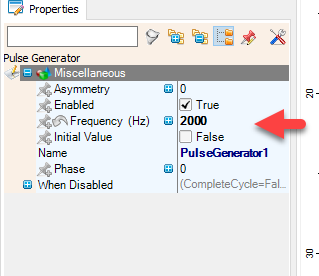
Select "PulseGenerator1" and in the properties window set "Frequency" to 2000 << this will be the speed of the stepper motor; you can adjust it to your needs
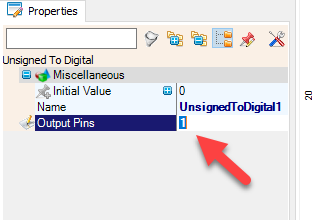
Select "UnsignedToDigital1" and in the properties window set "Output Pins" to 1
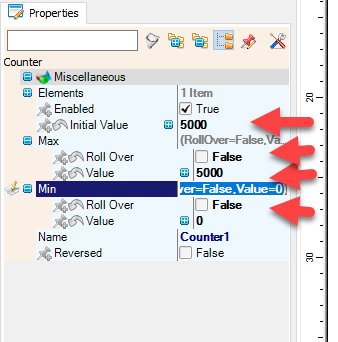
Select "Counter1" and in the properties window, set "Initial Value" to 5000 << this will be the number of steps of the stepper motor; you can adjust it to your needs
Select "Counter1" and in the properties window, set "Max">"Value" to 5000 << this will be the number of steps of the stepper motor; you can adjust it to your needs
Select "Counter1" and in the properties window set "Max">"Roll Over" to False
Select "Counter1" and in the properties window set "Min">"Roll Over" to False
Select "Counter1" and in the properties window, set "Max">"Value" to 0
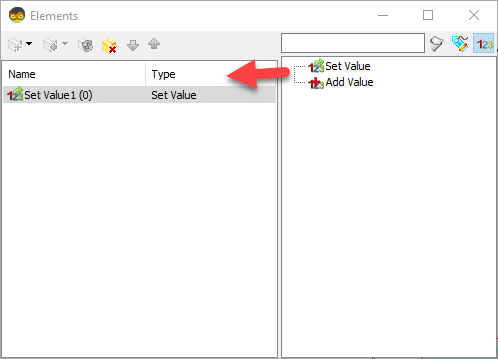
Double click on "Counter1" and in the Elements window, drag "Set Value" to the Left side
Close the Elements window
In Visuino Connect Components
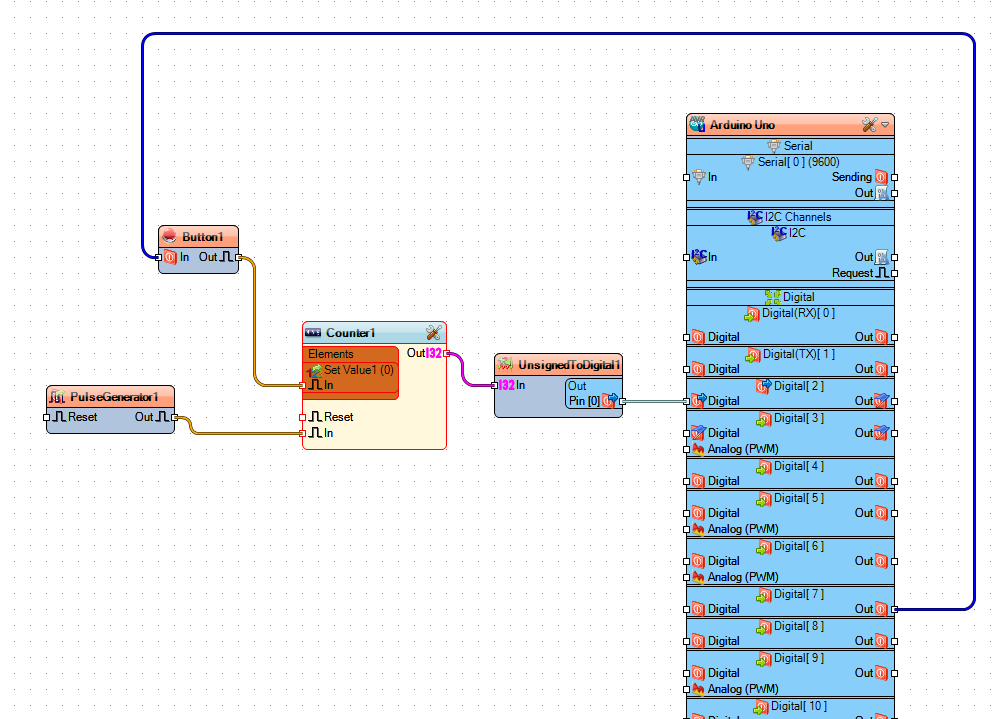
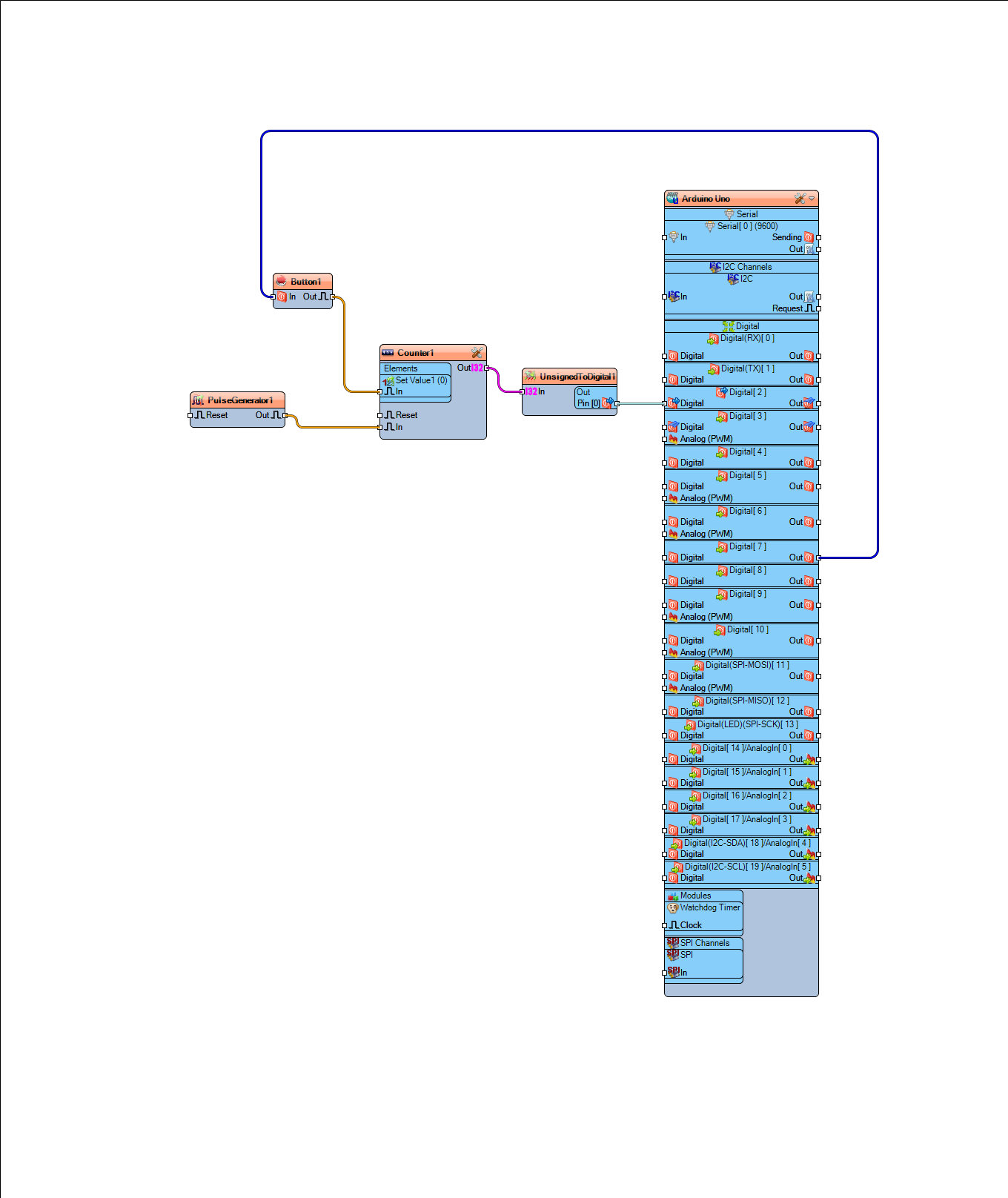
Connect "PulseGenerator1" Pin[Out] to "Counter1" Pin [In]
Connect Arduino Board Digital Pin [7] to "Button1" Pin [In]
Connect "Button1" Pin [Out] to "Counter1" > 'Set Value 1" Pin [In]
Connect "Counter1" Pin [Out] to "UnsignedToDigital1" Pin [In]
Connect "UnsignedToDigital1" Pin [Out] to Arduino Board Digital Pin [2]
Generate, Compile, and Upload the Arduino Code
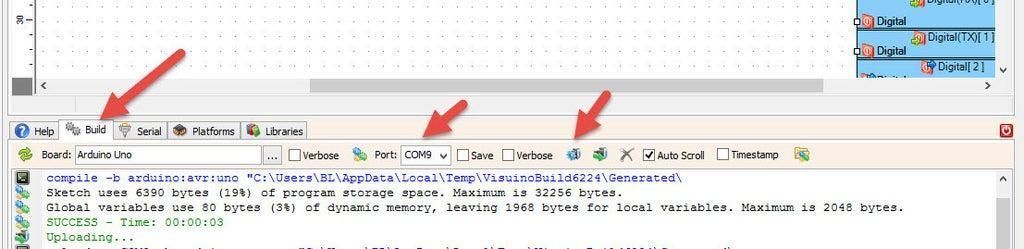
In Visuino, at the bottom, click on the "Build" tab, make sure the correct port is selected, then click on the "Compile/Build and Upload" button.
Play
If you power the Arduino module and press the button, the motor will start to run, and when it reaches a certain number of steps, it will stop. If you press the button again, it will run again for a certain number of steps.
Congratulations! You have completed your project with Visuino. Also attached is the Visuino project that I created for this. You can download it here and open it in Visuino: https://www.visuino.eu