設定
設定
 迅速な配送
迅速な配送
 送料は無料
送料は無料
 Incoterms
 お支払い方法


 マーケットプレイス製品

メーカー品番 SC1631
RASPBERRY PI PICO 2 RP2350
Raspberry Pi

Microcontrollers Raspberry Pi MCU
In this tutorial, we'll expand our blinking LED project to add USB serial communication, enabling us to send debug messages from our Raspberry Pi Pico 2 to a computer. Print debugging (sending text messages to a serial terminal) has become an essential tool for embedded development, popularized by frameworks like Arduino and MicroPython. While we rely on a few crates to abstract the USB communication, the result is a powerful and flexible debugging interface that gives you complete control over the hardware while maintaining memory safety guarantees.
Note that all code for this series can be found in this GitHub repository.
By the end of this tutorial, you'll have a working USB serial program that sends "hello!" messages every second and can receive data from your computer. This project introduces important embedded concepts, including USB device enumeration, the Communications Device Class (CDC) protocol, and non-blocking superloop architecture. We'll explore how to use the usb-device and usbd-serial crates to implement USB functionality, and you'll see how to structure a program that handles multiple tasks (USB polling and timed messages) without an operating system or traditional threading. This USB serial template will serve as the foundation for all future projects in this series, giving you a reliable way to debug and communicate with your embedded Rust applications.
If you have not done so already, I recommend reading chapters 1-3 in the Rust Book and doing the rustlings exercises on variables, functions, and if statements.
For this series, you will need the following components:
Connect the hardware as follows on your breadboard:
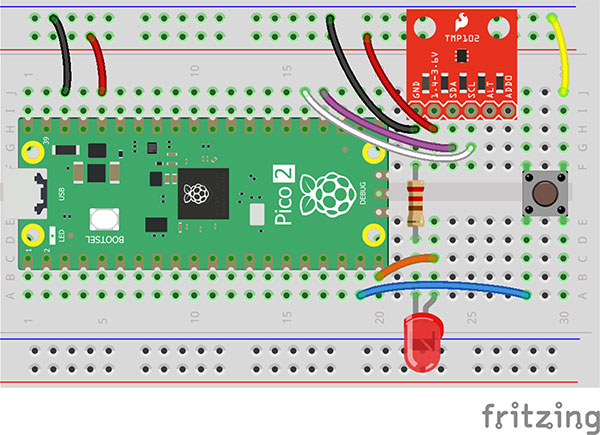
Note that in this project, we will only be using the Raspberry Pi Pico 2 to send serial data over the USB port.
Rather than starting from scratch, we'll use our blinky project as a template since much of the configuration remains the same. Navigate to your workspace directory and copy the entire blinky project. I recommend deleting the build/ directory to save on copying time.
cd workspace/apps
rm -rf blinky/build/
cp -r blinky usb-serial
This gives us all the necessary configuration files: .cargo/config.toml for cross-compilation settings, memory.x for the RP2350 memory layout, and the basic project structure. We'll need to make a few modifications to transform this into our USB serial project.
Your .cargo/config.toml and memory.x files will remain the same. We’ll make some changes to Cargo.toml and main.rs for our new application.
We need to make several changes to Cargo.toml to transform our blinky project into a USB serial application.
[package]
name = "usb-serial"
version = "0.1.0"
edition = "2024"

[dependencies]
rp235x-hal = { version = "0.3.0", features = ["rt", "critical-section-impl"] }
embedded-hal = "1.0.0"
cortex-m = "0.7.7"
cortex-m-rt = "0.7.5"
usb-device = "0.3.2"
usbd-serial = "0.2.2"

[profile.dev]

[profile.release]
opt-level = "s"
lto = true
codegen-units = 1
strip = true
First, update the package name in the [package] section to be “usb-serial” instead of “blinky.” We then add usb-device and usbd-serial crates as dependencies. The usb-device crate provides the core USB device stack, handling device enumeration, descriptor management, and the overall USB protocol. The usbd-serial crate implements the Communications Device Class (CDC) protocol on top of usb-device, which makes your Pico 2 appear as a serial port to your computer.
Finally, we added a [profile.release] section with optimization settings. The opt-level = "s" optimizes for size rather than speed, lto = true enables link-time optimization to eliminate dead code across crate boundaries, codegen-units = 1 allows better optimization by using a single codegen unit, and strip = true removes debug symbols from the final binary. These settings can significantly reduce your program's flash memory footprint, which becomes important as your projects grow more complex.
We will explore building the application with both the “debug” and “release” profiles later in the tutorial.
We will start with the main.rs file from the previous blinky application and make some changes.
#![no_std]
#![no_main]

// We need to write our own panic handler
use core::panic::PanicInfo;

// Alias our HAL
use rp235x_hal as hal;

// USB device and Communications Class Device (CDC) support
use usb_device::{class_prelude::*, prelude::*};
use usbd_serial::SerialPort;

// Custom panic handler: just loop forever
#[panic_handler]
fn panic(_info: &PanicInfo) -> ! {
    loop {}
}

// Copy boot metadata to .start_block so Boot ROM knows how to boot our program
#[unsafe(link_section = ".start_block")]
#[used]
pub static IMAGE_DEF: hal::block::ImageDef = hal::block::ImageDef::secure_exe();

// Set external crystal frequency
const XOSC_CRYSTAL_FREQ: u32 = 12_000_000;

// Main entrypoint (custom defined for embedded targets)
#[hal::entry]
fn main() -> ! {
    // Get ownership of hardware peripherals
    let mut pac = hal::pac::Peripherals::take().unwrap();

    // Set up the watchdog and clocks
    let mut watchdog = hal::Watchdog::new(pac.WATCHDOG);
    let clocks = hal::clocks::init_clocks_and_plls(
        XOSC_CRYSTAL_FREQ,
        pac.XOSC,
        pac.CLOCKS,
        pac.PLL_SYS,
        pac.PLL_USB,
        &mut pac.RESETS,
        mut watchdog,
    )
    .ok()
    .unwrap();

/ Move ownership of TIMER0 peripheral to create Timer struct
    let timer = hal::Timer::new_timer0(pac.TIMER0, &mut pac.RESETS, &clocks);

    // Initialize the USB driver
    let usb_bus = UsbBusAllocator::new(hal::usb::UsbBus::new(
        pac.USB,
        pac.USB_DPRAM,
        clocks.usb_clock,
        true,
        &mut pac.RESETS,
    ));

    // Configure the USB as CDC
    let mut serial = SerialPort::new(&usb_bus);

    // Create a USB device with a fake VID/PID
    let mut usb_dev = UsbDeviceBuilder::new(&usb_bus, UsbVidPid(0x16c0, 0x27dd))
        .strings(&[StringDescriptors::default()
            .manufacturer("Fake company")
            .product("Serial port")
            .serial_number("TEST")])
        .unwrap()
        .device_class(2) // from: https://www.usb.org/defined-class-codes
        .build();

    // Read buffer
    let mut rx_buf = [0u8; 64];

    // Superloop
    let mut timestamp = timer.get_counter();
    loop {
        // Needs to be called at least every 10 ms
        if usb_dev.poll(&mut [&mut serial]) {
            match serial.read(&mut rx_buf) {
                Ok(0) => {}
                Ok(count) => {
                    // Challenge for student!
                    rx_buf[..count].iter_mut().for_each(|byte| {
                        *byte = byte.to_ascii_uppercase();
                    });
                    let _ = serial.write(&rx_buf[0..count]);
                }
                Err(_e) => {}
            }
        }

        // Send message every second (non-blocking)
        if (timer.get_counter() - timestamp).to_millis() >= 1_000 {
            timestamp = timer.get_counter();
            let _ = serial.write(b"hello!\r\n");
        }
    }
}
The structure of our USB serial program follows the same pattern as blinky: we still have #![no_std] and #![no_main] attributes, a custom panic handler, and the boot metadata configuration. However, we're adding several key components to enable USB communication. At the top of the file, we import the usb_device crate (with class_prelude and prelude modules) and usbd_serial::SerialPort. These provide the types and traits we need to create a USB device and implement the CDC serial protocol. The hardware initialization remains largely the same: we take ownership of peripherals, configure the watchdog and clocks, and create a timer. The major difference is that we no longer need GPIO pin configuration since we're not controlling an LED, as we'll be working entirely with the USB peripheral.
The USB setup requires three main components working together. First, we create a UsbBusAllocator by passing the USB peripheral, USB DPRAM (dual-port RAM used for USB data transfer), the USB clock, and a few other parameters to hal::usb::UsbBus::new(). This allocator manages USB endpoints and buffers. Second, we create a SerialPort using this bus allocator, which implements the CDC protocol and provides methods for reading and writing serial data. Third, we build a UsbDevice using UsbDeviceBuilder, where we specify a Vendor ID (VID) and Product ID (PID). Note that we're using 0x16c0 and 0x27dd, which are test IDs suitable for development. We also add descriptive strings that will appear when you plug in the device, and set the device class to 2 (Communications Device Class) according to USB specifications. This device enumeration process is what makes your Pico 2 appear as a serial port in your operating system's device manager.
The main loop demonstrates a non-blocking superloop architecture common in embedded systems without an operating system. The key operation is calling usb_dev.poll(&mut [&mut serial]) repeatedly, which must happen at least every 10 milliseconds to handle USB protocol timing requirements and process incoming data.
Inside the poll check, we use Rust's match statement to handle the different possible results from serial.read(). In Rust, many functions return a Result type, which can be either Ok (success) or Err (an error occurred). The match statement forces us to explicitly handle both cases, making error handling visible and harder to forget. In our code, Ok(0) means we successfully read but received zero bytes (no data available), so we do nothing. Ok(count) means we received count bytes of data, which we can then process. Err(_e) handles any errors that occurred during reading. Note that the underscore prefix tells Rust we're intentionally ignoring the error value. This pattern-matching approach is central to Rust's philosophy of explicit error handling without exceptions.
After the poll, we demonstrate time-based non-blocking behavior by tracking timestamps: every second, we send a "hello!" message over the USB serial port without blocking other operations. This superloop pattern (continuously polling for events and checking time-based conditions) is fundamental to bare-metal embedded programming, where you don't have the luxury of OS-level threading or asynchronous task scheduling (something we will explore with Embassy at the end of this series).
Save all your work. In the terminal, build the program from the project directory:
cd blinky/
cargo build
By default, cargo build builds for the “debug” profile for the thumbv8m.main-none-eabihf target. You can check the size of the binary with the following (once again, it defaults to the “debug” profile):
cargo size
You can build and check the size of the binary with the “release” profile as well:
cargo build --release
cargo size --release
Notice how much the compiler and linker flags have affected the size of the final binary! Be aware that the Rust build system can be quite aggressive when optimized for speed or binary size: it can perform loop unrolling, inlining, monomorphization, etc., which means the final machine code might not be formatted in a similar manner to your human-readable Rust code, which can make step-through debugging (if you use it) more difficult.
Next, convert your compiled binary file into a .uf2 file that can be uploaded to the RP2350’s USB mass storage device-style bootloader. We can find our binary in the corresponding folder (notice that we’re using the release profile here). In a terminal, enter:
picotool uf2 convert target/thumbv8m.main-none-eabihf/release/usb-serial -t elf firmware.uf2 -t uf2
Press and hold the BOOTSEL button on the Pico 2, plug in the USB cable to the Pico 2, and then release the BOOTSEL button. That should put your RP2350 into bootloader mode, and it should enumerate as a mass storage device on the computer.
On your host computer, navigate to workspace/apps/blinky/, copy firmware.uf2, and paste it into the root of the RP2350 drive (should be named “RP2350” on your computer).
Once it copies, the board should automatically reboot. Use a serial terminal program (e.g., PuTTY, minicom) to connect to your Pico 2. You should see “hello!” being printed to the terminal once per second.
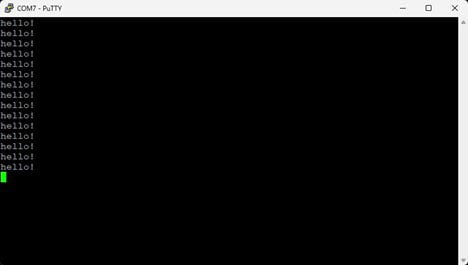
As a challenge, modify the USB serial demo we just wrote to capture any characters it sees over the serial port, convert them to upper case, and then print them back over the same serial port. My solution for this exercise can be found here.
In the next tutorial, we will cover Rust’s ownership and borrowing rules with a collection of small examples. I highly recommend reading chapter 4 in the Rust Book and tackling the primitive_types and move_semantics exercises in rustlings.
Find the full Intro to Embedded Rust series here.