設定
設定
 迅速な配送
迅速な配送
 送料は無料
送料は無料
 Incoterms
 お支払い方法


 マーケットプレイス製品

ESP8266 IoT Development Board Weather Station Using DHT11 Sensor & OLED
2026-06-01 | By Ron Cutts
License: GNU Lesser General Public License Displays Microcontrollers Wifi Arduino ESP32
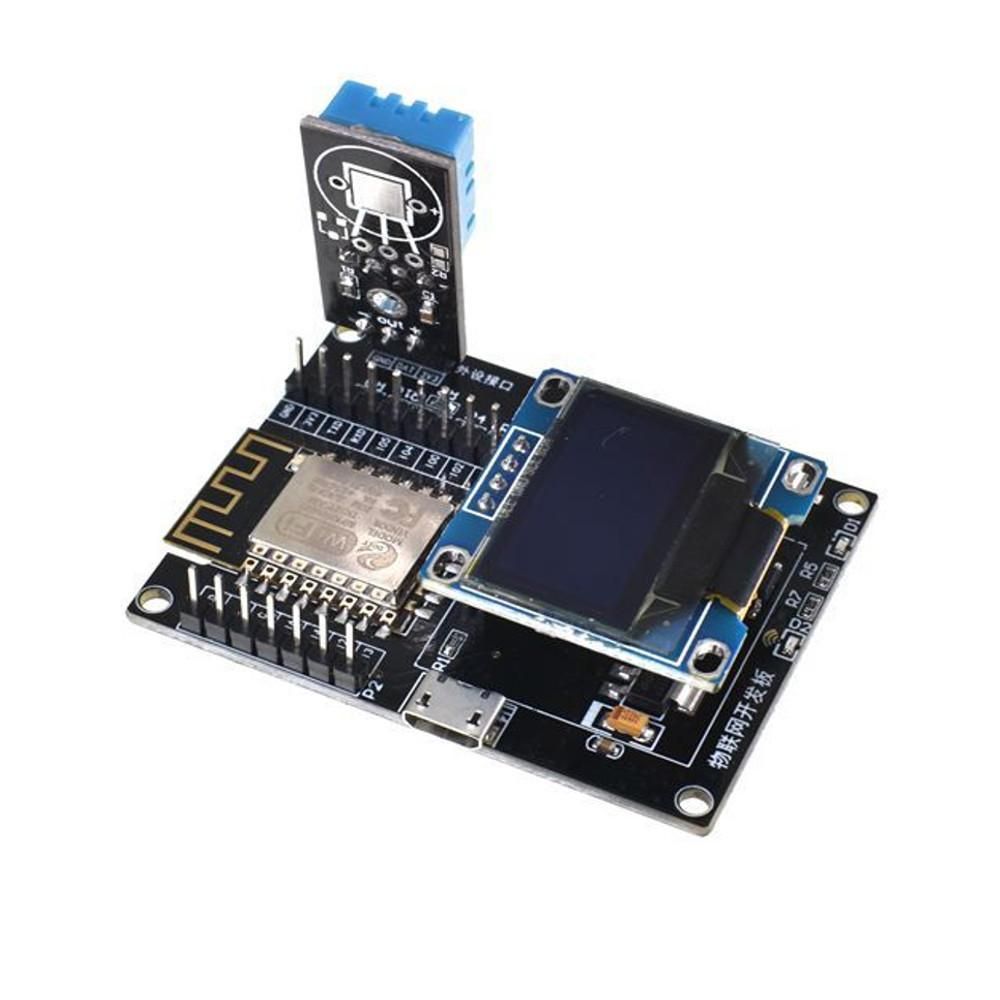
In this tutorial, you will learn how to make a simple weather station using an ESP8266 IoT development board with a DHT11 sensor & OLED display. We are going to make all this using the Visuino program.
You will also learn how to set the I2C pins for any board in Visuino. This is very useful when you have a board with different I2C pins than the supported ones.
Learn more about Visuino: What is Visuino
What You Will Need
Visuino program: Download Visuino
The Circuit
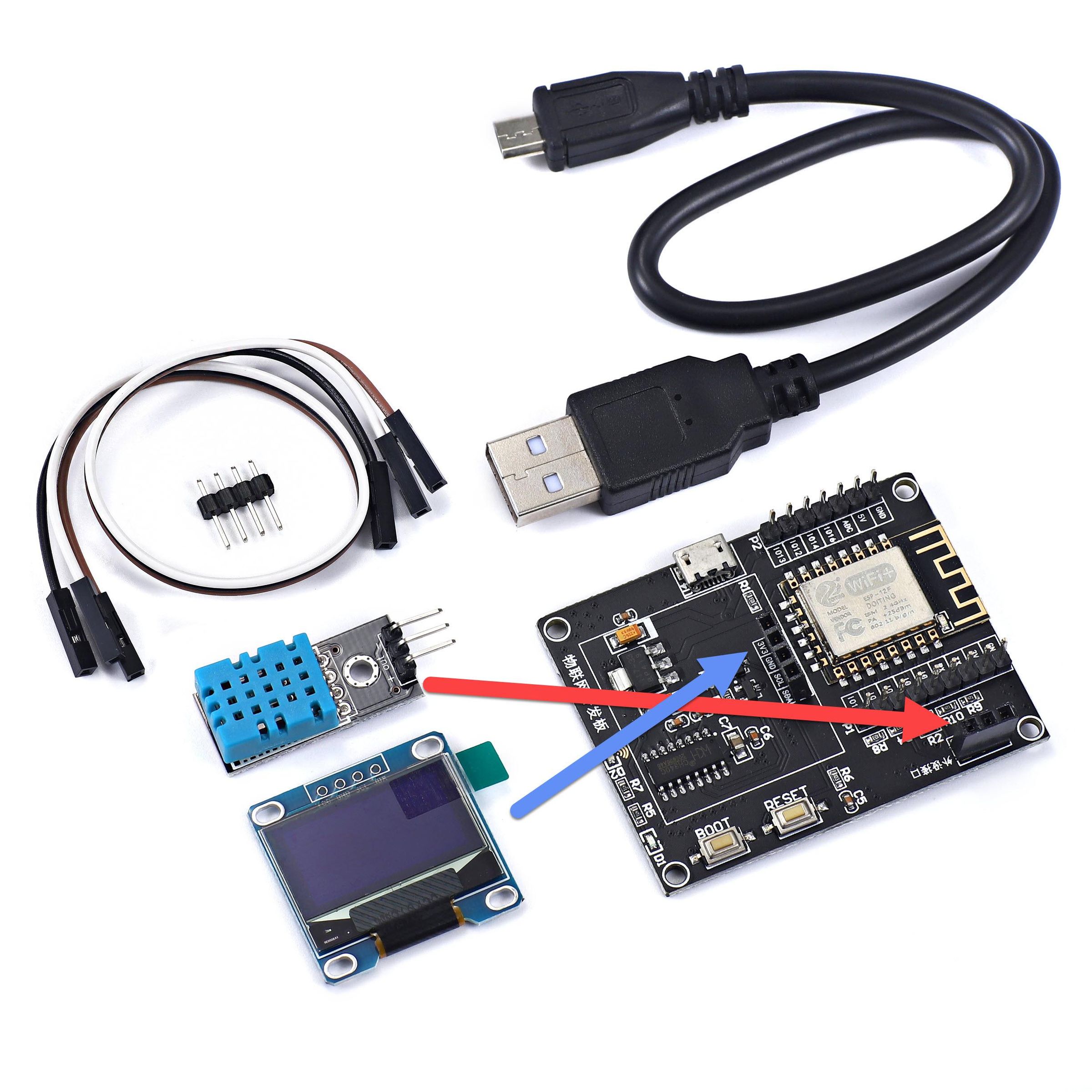
Connect the DHT11 sensor pin [VCC] to the Development Board pin [VCC] (see attached picture).
Connect the OLED display pin [VCC] to the Development Board pin [VCC] (see attached picture).
Start Visuino, and Select the Generic ESP8266 Board Type
The Visuino: https://www.visuino.eu also needs to be installed. Download the free version or register for a free trial.
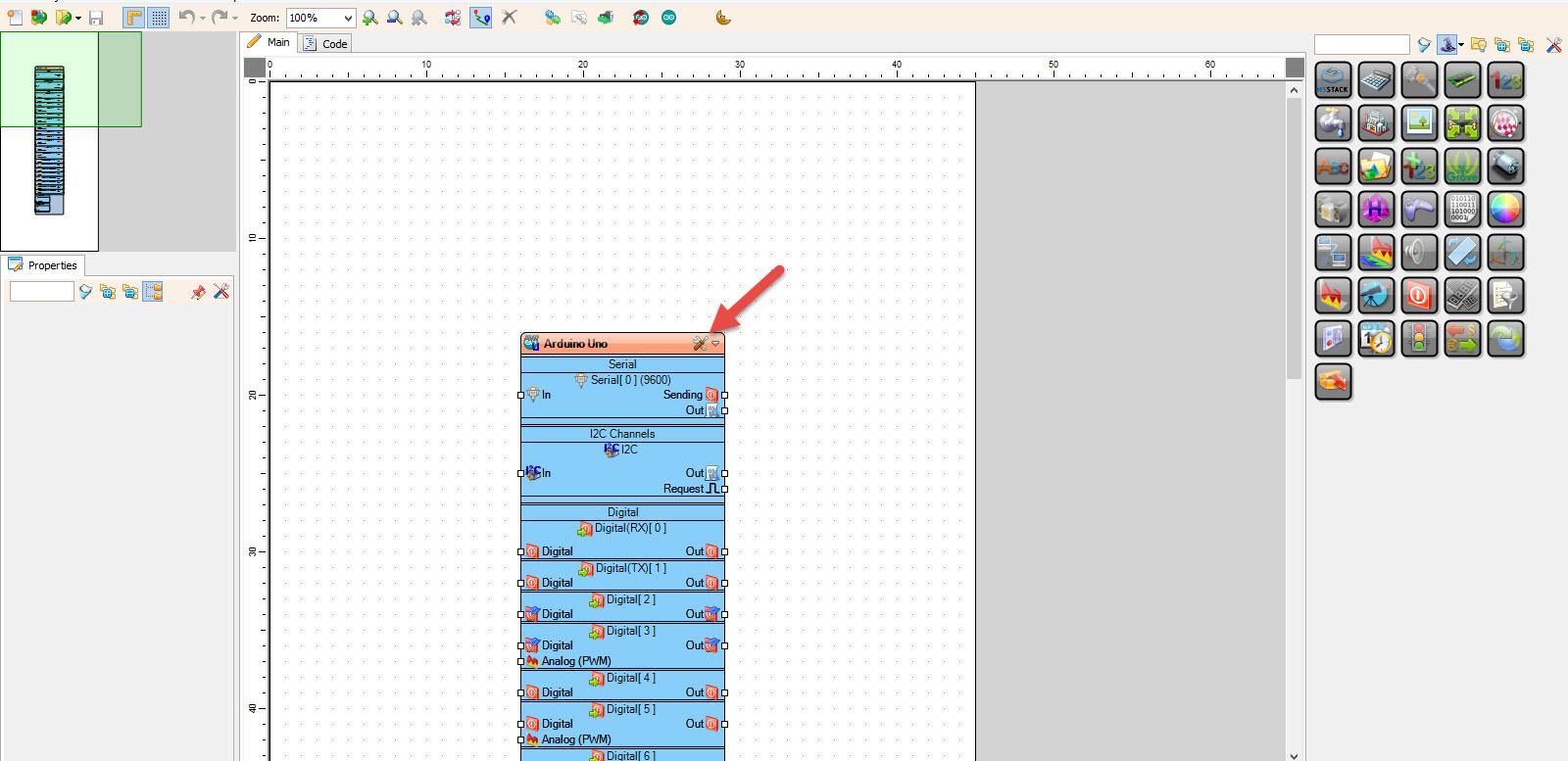
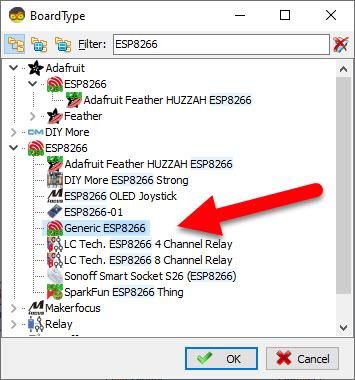
Start Visuino as shown in the first picture. Click on the "Tools" button on the Arduino component (Picture 1) in Visuino. When the dialog appears, select "Generic ESP8266" as shown in Picture 2
In Visuino, set I2C pins
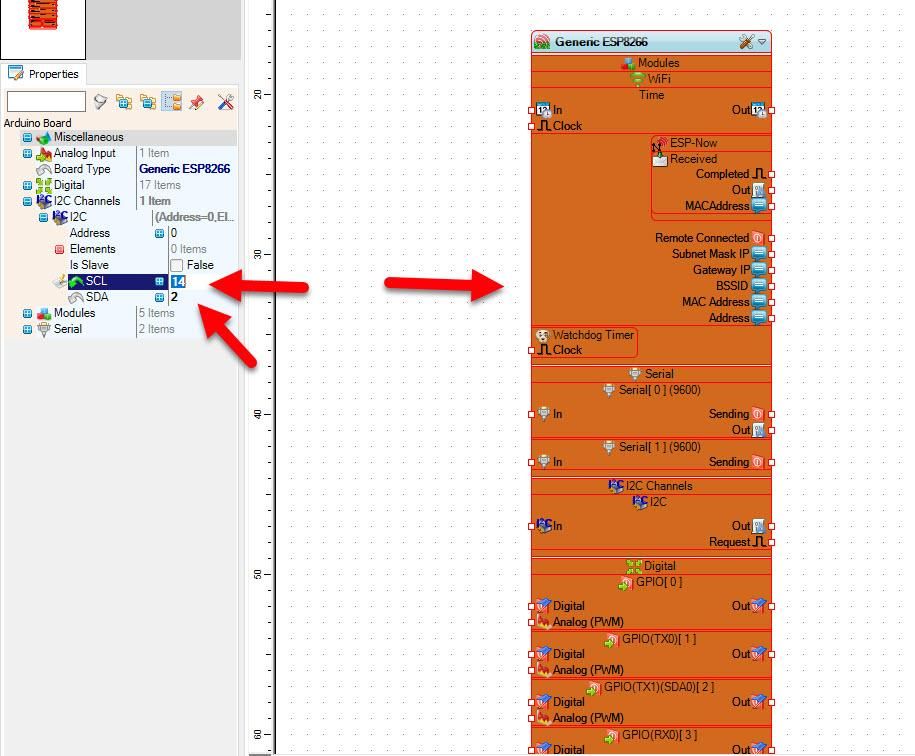
Select the Generic ESP8266 Board and in the Properties window expand "I2C Channels" > "I2C" and set "SCL" to 14 and "SDA" to 2
Note: Your ESP8266 IoT Development Board might have different SCL & SDA pins, so check your board specification
In Visuino, Add Components
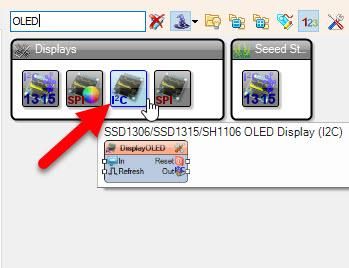
Add "OLED I2C" component
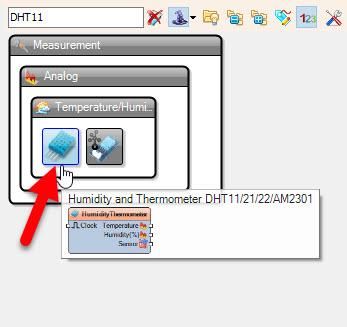
Add "DHT11" component
Note: in case you have any other DHT sensor, select the "HumidityThermometer1" component and in the properties window, select the type of your DHT sensor, either DHT11, DHT22, etc.
In Visuino Set Components
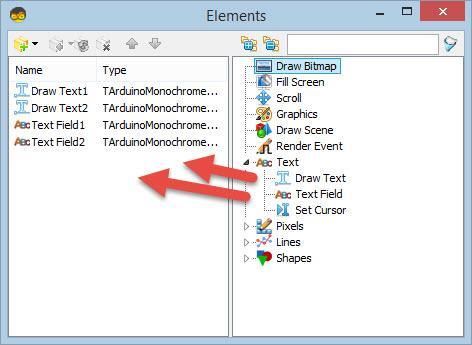
Double-click on the "DisplayOLED1" component and in the "Elements" window
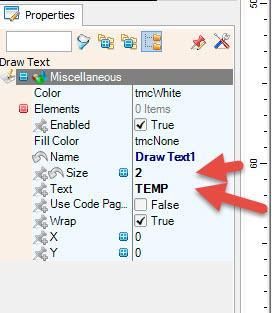
Drag "Draw Text" to the left side & in the properties window set size to 2, "Text" to TEMP
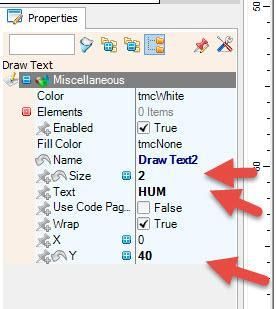
Drag another "Draw Text" to the left side & in the properties window set size to 2, "Text" to HUM & "Y" to 40
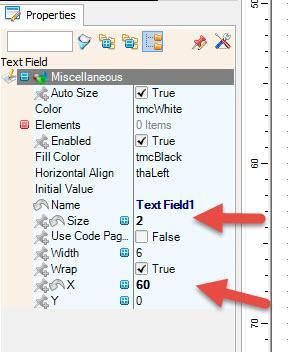
Drag "Text Field" to the left side & in the properties window set size to 2, and "X" to 60
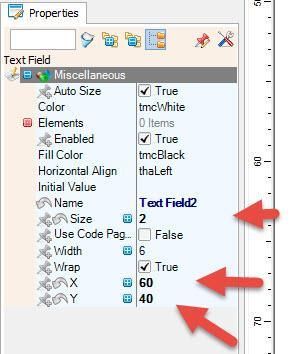
Drag another "Text Field" to the left side & in the properties window set size to 2, and "X" to 60 and "Y" to 40
Close the "Elements" window
In Visuino Connect Components
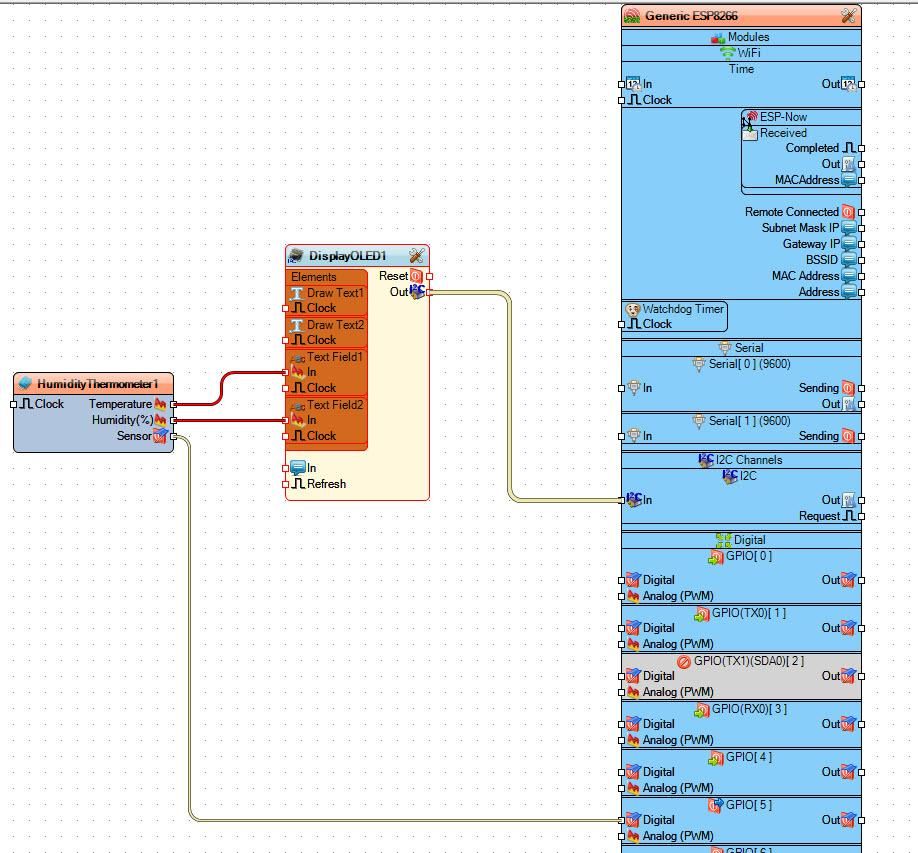
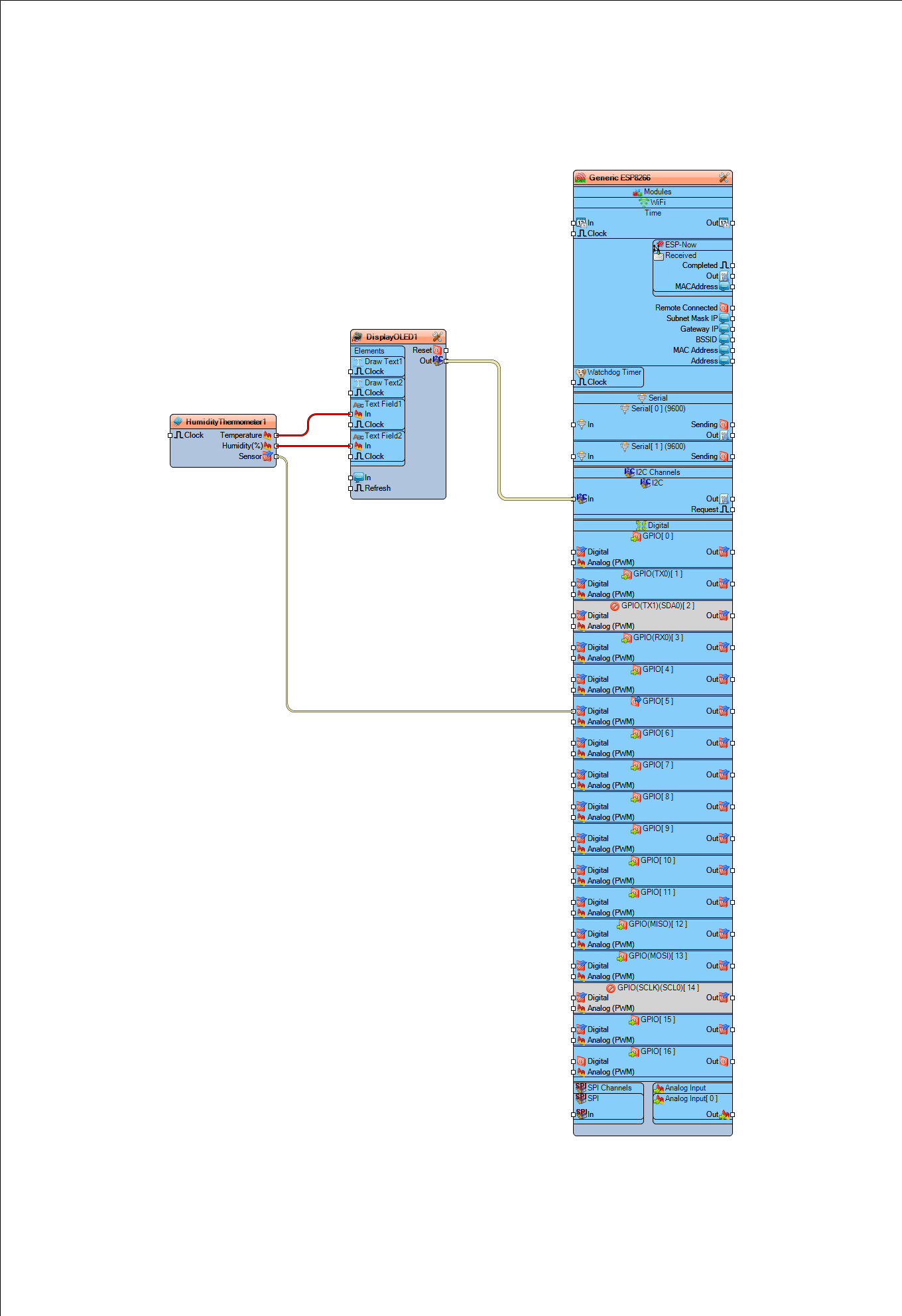
Connect "HumidityThermometer1" pin [Temperature] to "DisplayOLED1" > "TextField1" pin [In]
Connect "HumidityThermometer1" pin [Humidity] to "DisplayOLED1" > "TextField2" pin [In]
Connect "HumidityThermometer1" pin [Sensor] to "Generic ESP8266 Board" GPIO pin [5]
Connect "DisplayOLED1" pin I2C [Out] to "Generic ESP8266 Board" I2C pin [In]
Generate, Compile, and Upload the Arduino Code
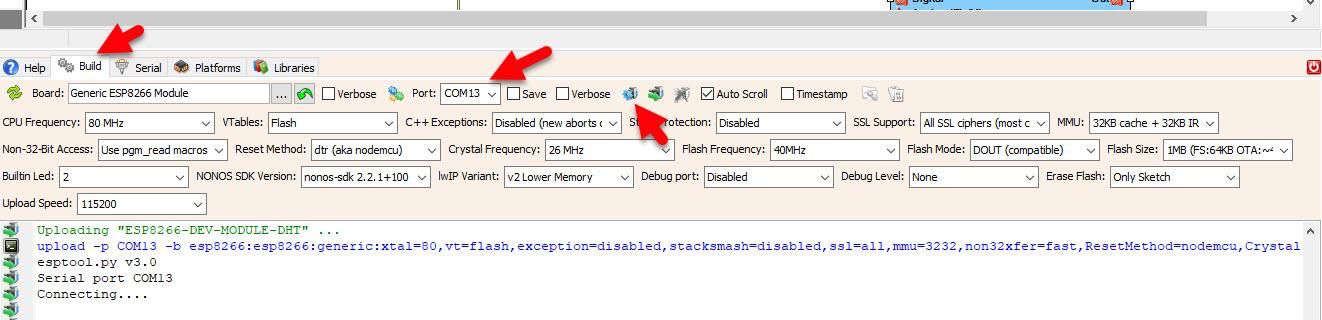
In Visuino, at the bottom, click on the "Build" tab, make sure the correct port is selected, then click on the "Compile/Build and Upload" button.
Play
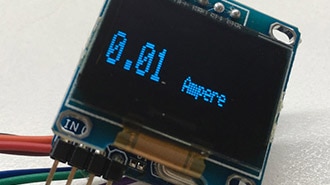
If you power the ESP8266 IoT Development Board, the display will start to show the current temperature and humidity.
Congratulations! You have completed your project with Visuino. Also attached is the Visuino project that I created for this tutorial. You can download it and open it in Visuino: https://www.visuino.eu