Settings
 Fast Delivery
 Free Shipping
 Incoterms
 Payment Types


 Marketplace Product

Get Stepper Motor Positions From SD Card
2026-06-02 | By Ron Cutts
License: GNU Lesser General Public License Microcontrollers Motors SPI Arduino
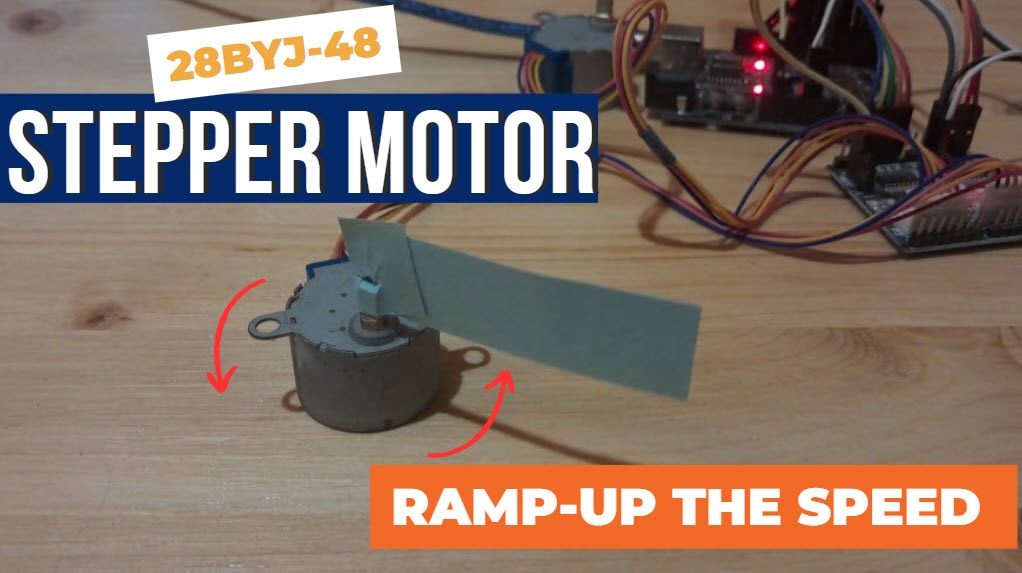
In this tutorial, we are going to read stepper motor positions from the SD card where we saved a text file with the number of steps. You can set both direction and steps.
Watch the video!
Learn more about Visuino: What is Visuino
What You Will Need
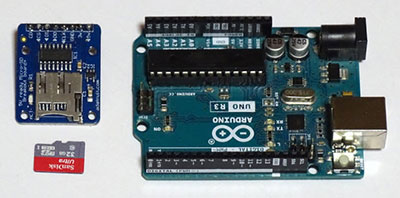
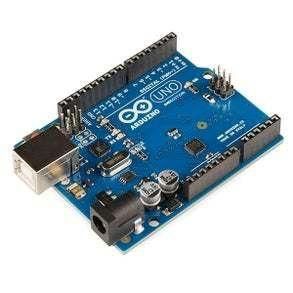
Arduino UNO (Or any other Arduino)
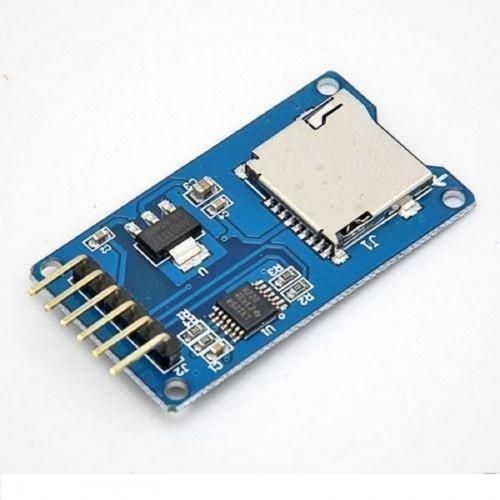
SD card to store a file
Visuino program: Download Visuino
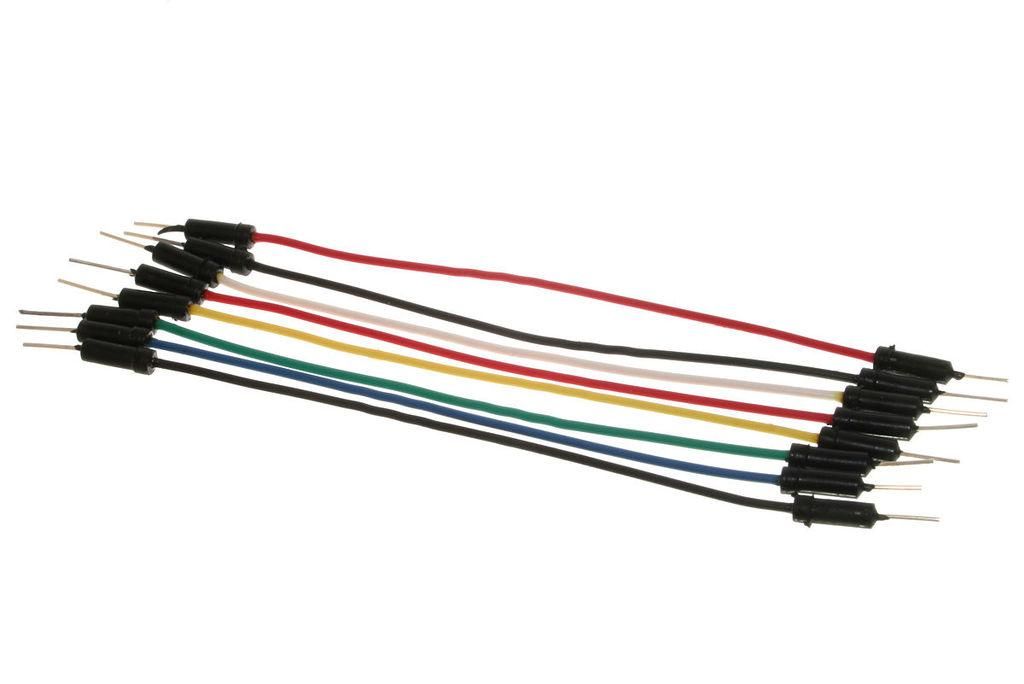
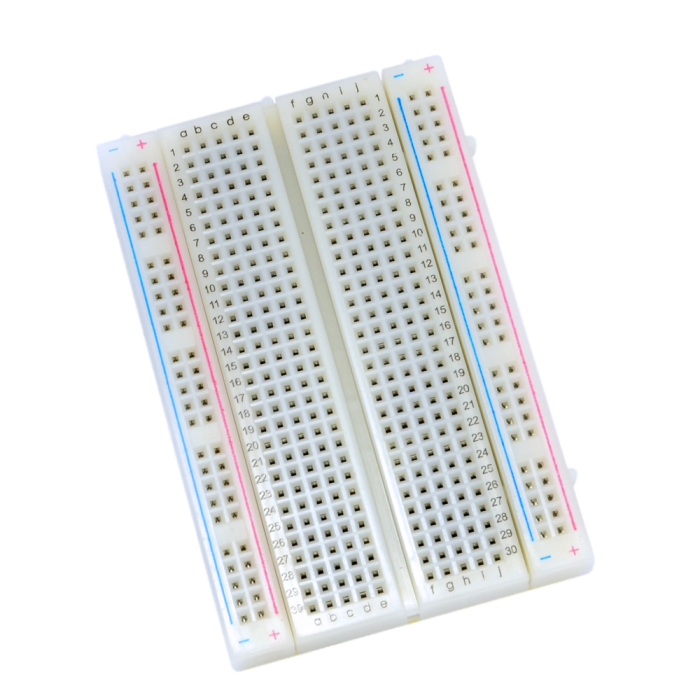

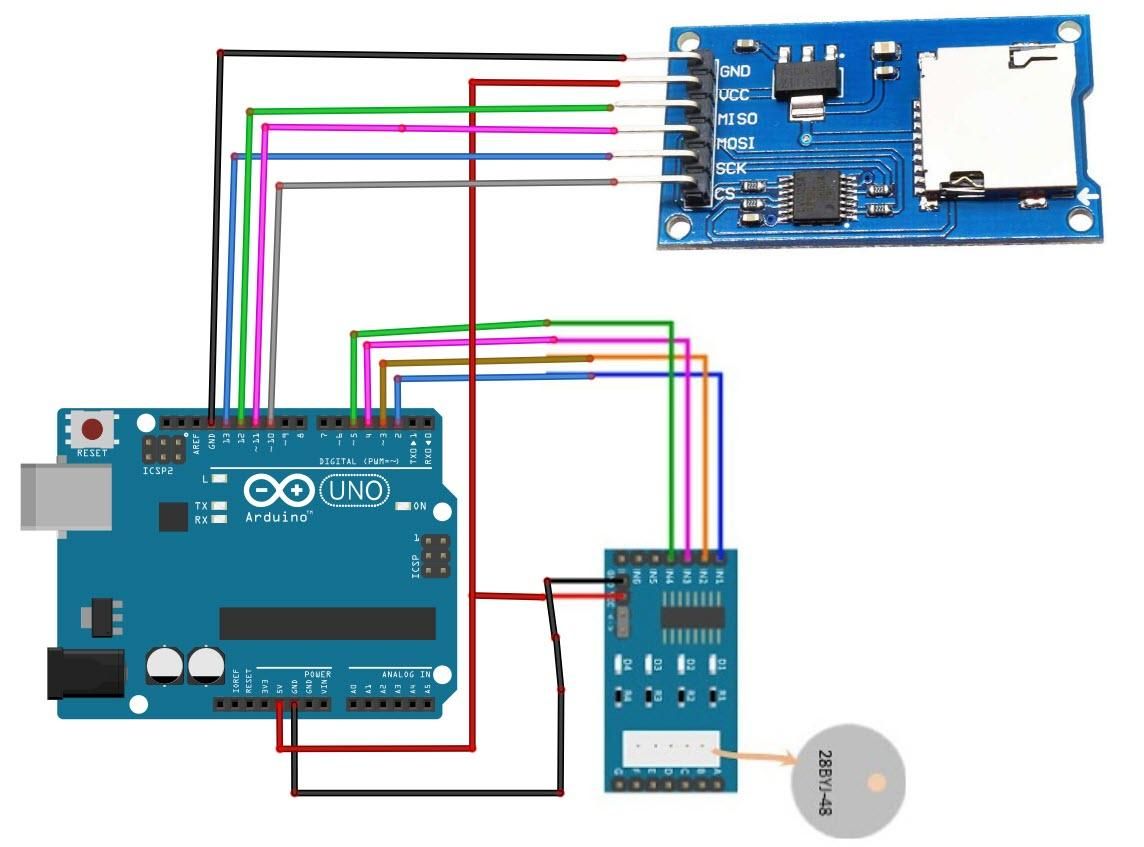
The Circuit
Connect the SD card Module pin GND to the Arduino pin GND
Connect the SD card Module pin VCC to Arduino pin 5V
Connect the SD card Module pin SCK to Arduino digital pin 13
Connect the SD card Module pin MISO to Arduino digital pin 12
Connect the SD card Module pin MOSI to Arduino digital pin 11
Connect the SD card Module pin CS to Arduino digital pin 10
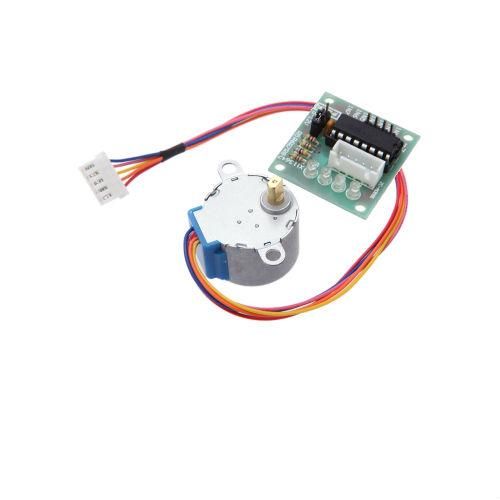
Connect the Stepper Motor to the Stepper Motor Driver
Connect Arduino pin [5V] to Driver Board pin [VCC]
Connect Arduino pin [GND] to Driver Board pin [GND]
Connect Arduino digital pin [2] to Driver Board pin [IN1]
Connect Arduino digital pin [3] to Driver Board pin [IN2]
Connect Arduino digital pin [4] to Driver Board pin [IN3]
Connect Arduino digital pin [5] to Driver Board pin [IN4]
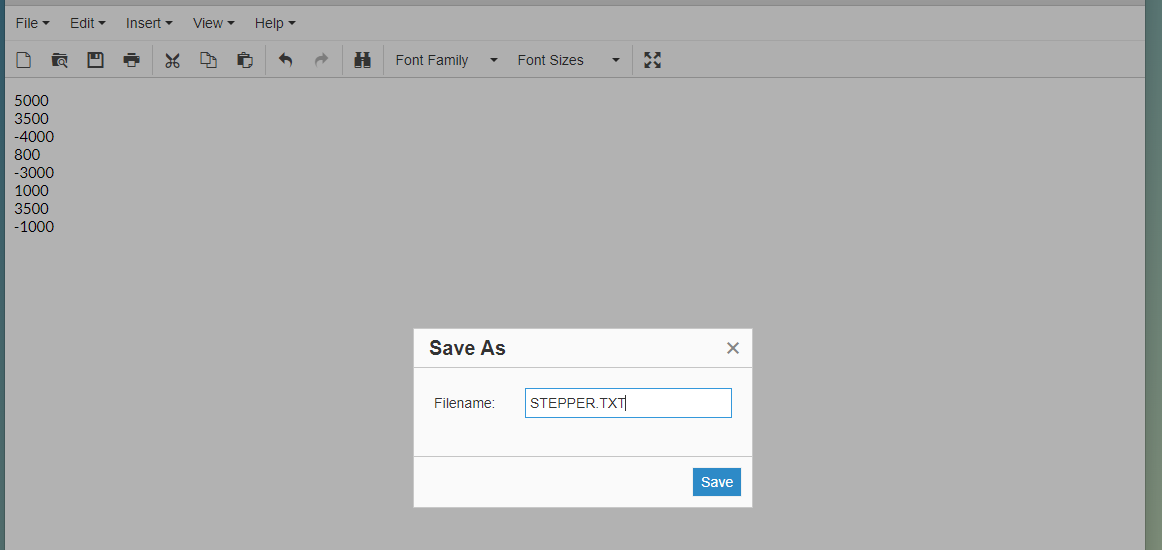
Prepare the SD Card
In Notepad, type the number of steps in each line. If you want to change the direction, just add the minus (-) in front of the number and save it to the SD Card in the file "STEPPER.TXT"
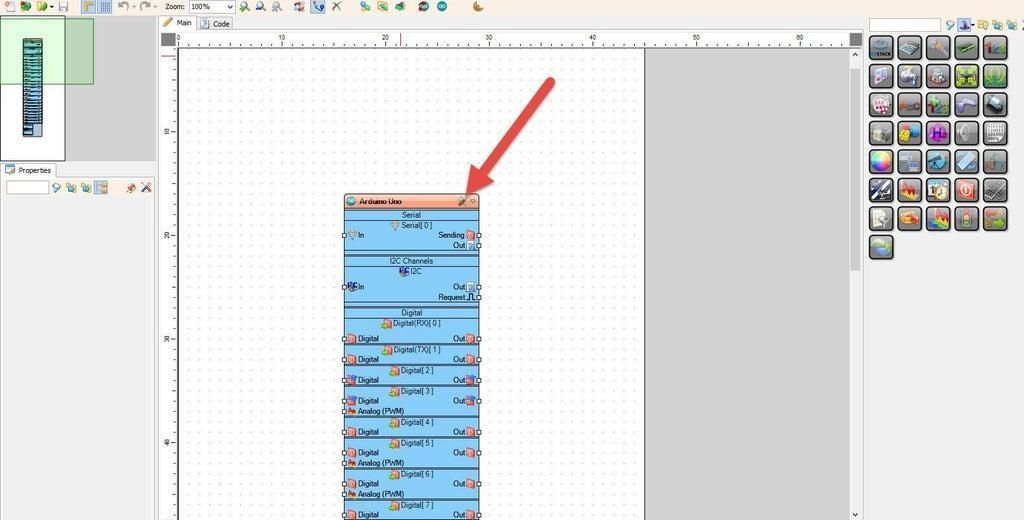
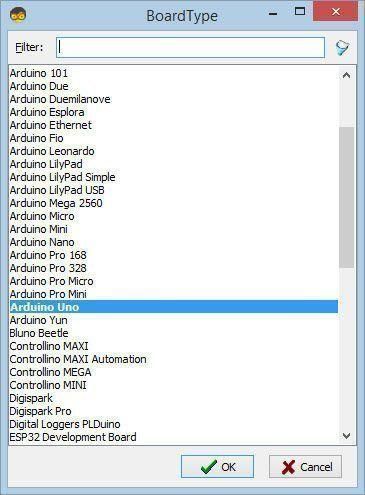
Start Visuino, and Select the Arduino UNO Board Type
The Visuino: https://www.visuino.eu needs to be installed. Start Visuino as shown in the first picture. Click on the "Tools" button on the Arduino component (Picture 1) in Visuino. When the dialog appears, select "Arduino UNO" as shown in Picture 2
In Visuino, Add Components
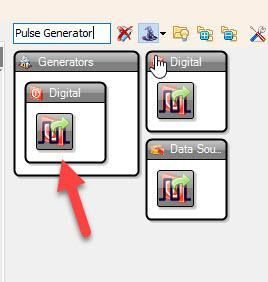
Add "Pulse Generator" component
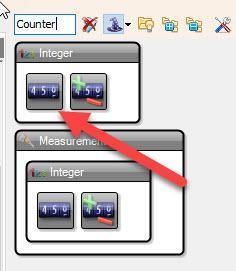
Add "Counter" component
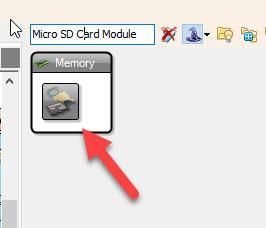
Add "Micro SD Card Module" component
Add "Text Multi Source" component
Add "Replace Text" component
Add "Text To Integer" component
Add "Integer Multi Source" component
Add "Contains Text" component
Add "Up/Down Counter" component
Add "4 Wire Stepper Motor" component
Add "Compare Integer Value" component
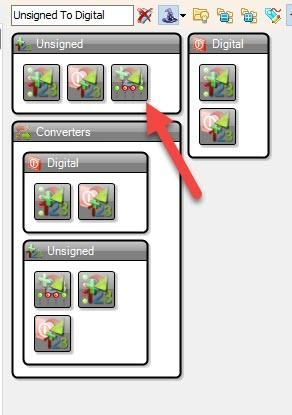
Add "Unsigned To Digital" component
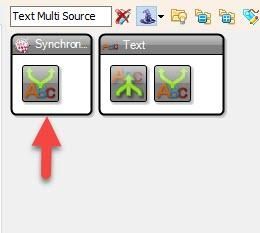
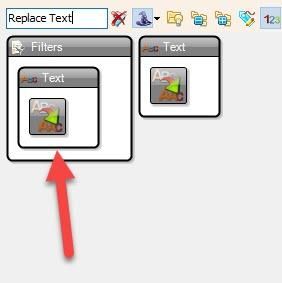
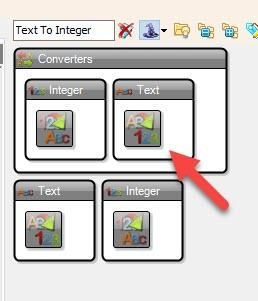
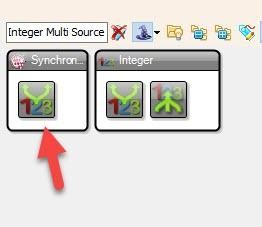
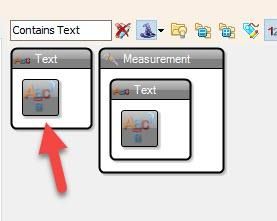
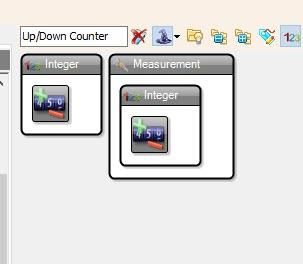
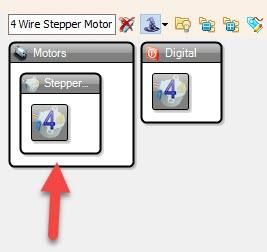
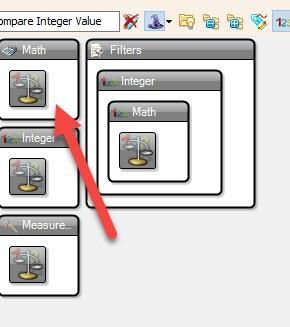
In Visuino Set Components
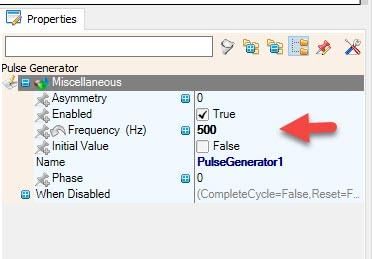
Select "PulseGenerator1" and in the properties window set "Frequency" to 500
If you want to set the stepper motor to run faster or slower, then adjust the Frequency of the "PulseGenerator1"
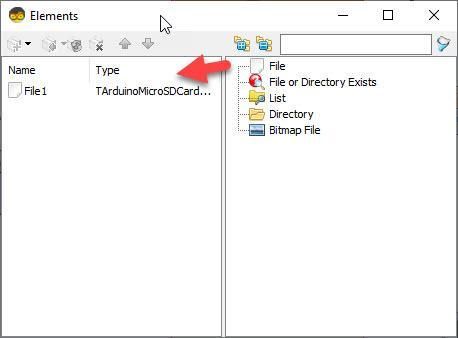
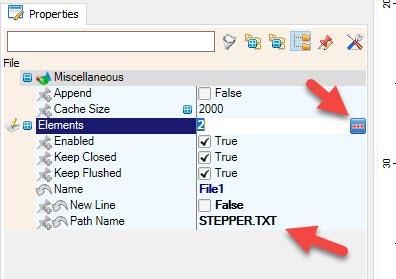
Double click on the "SDCard1" and in the "Elements" window, drag "File" to the left side, and in the properties window, set "Path Name" to STEPPER.TXT
Select "Elements" and click on the 3 dots button, and in the new "Elements" window:
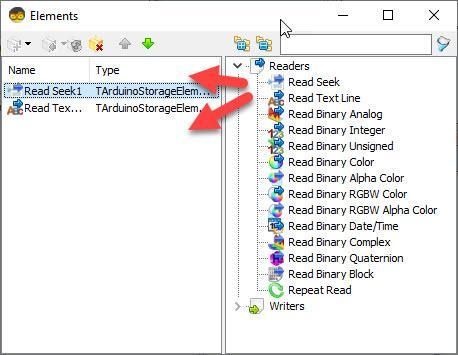
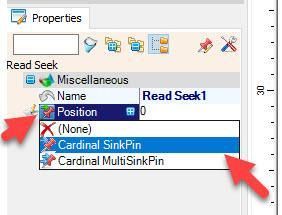
Drag "Read Seek" to the left side and in the properties window select "Position" and click on the pin icon and select "Cardinal SinkPin"
Drag "Read Text Line" to the left
Close both "Elements" windows
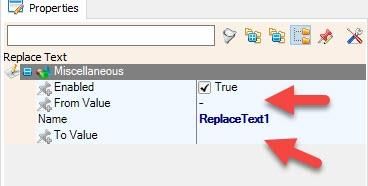
Select "ReplaceText1" and in the properties window set "From Value" to -
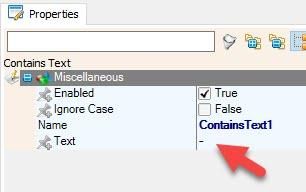
Select "ContainsText1" and in the properties window set "Text" to -
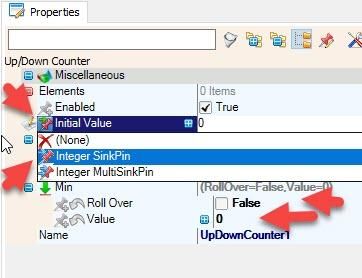
Select "UpDownCounter1" and in the properties window select "Initial Value" to and click on the pin icon and select "Integer SinkPin"
Select "UpDownCounter1" and in the properties window, set "Min" > "Roll Over" to False and "Min" > "Value" to 0
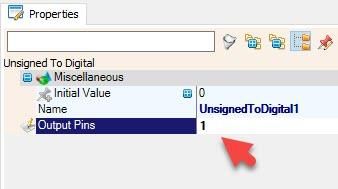
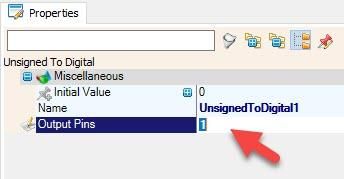
Select "UnsignedToDigital1" and in the properties window set "Output pins" to 1
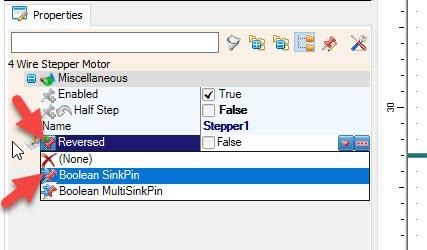
Select "Stepper1" and in the properties select "Reversed" and click on the Pin Icon and select "Boolean SinkPin"
In Visuino Connect Components
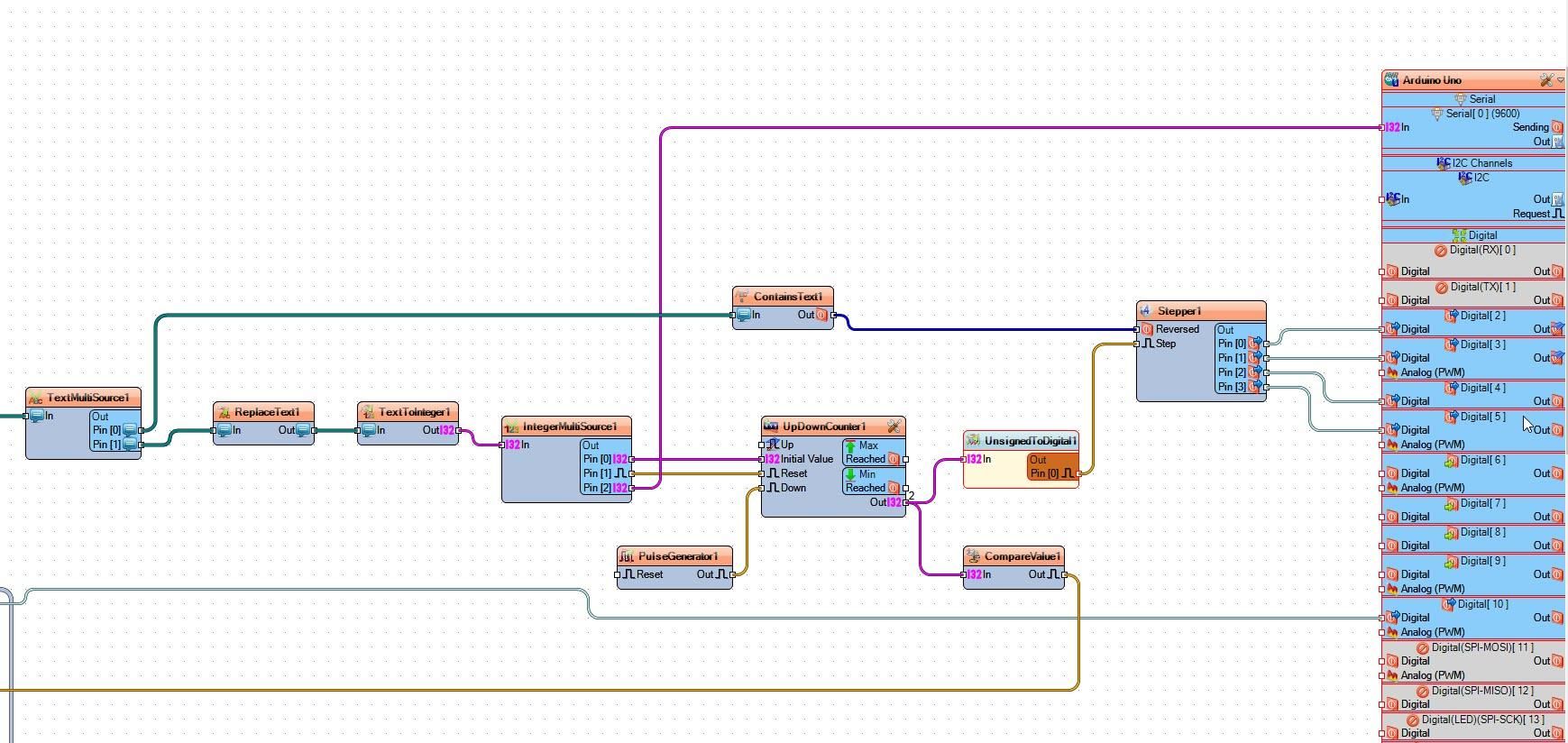
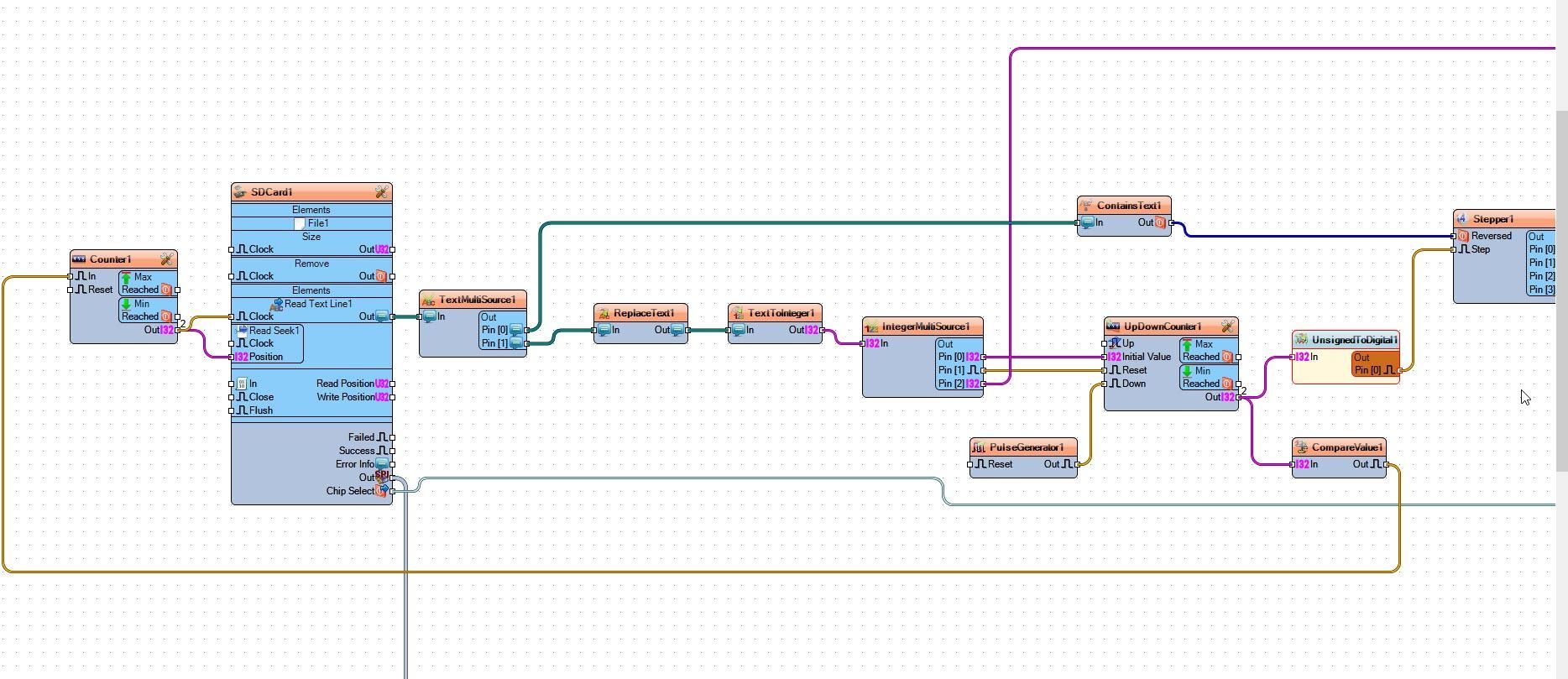
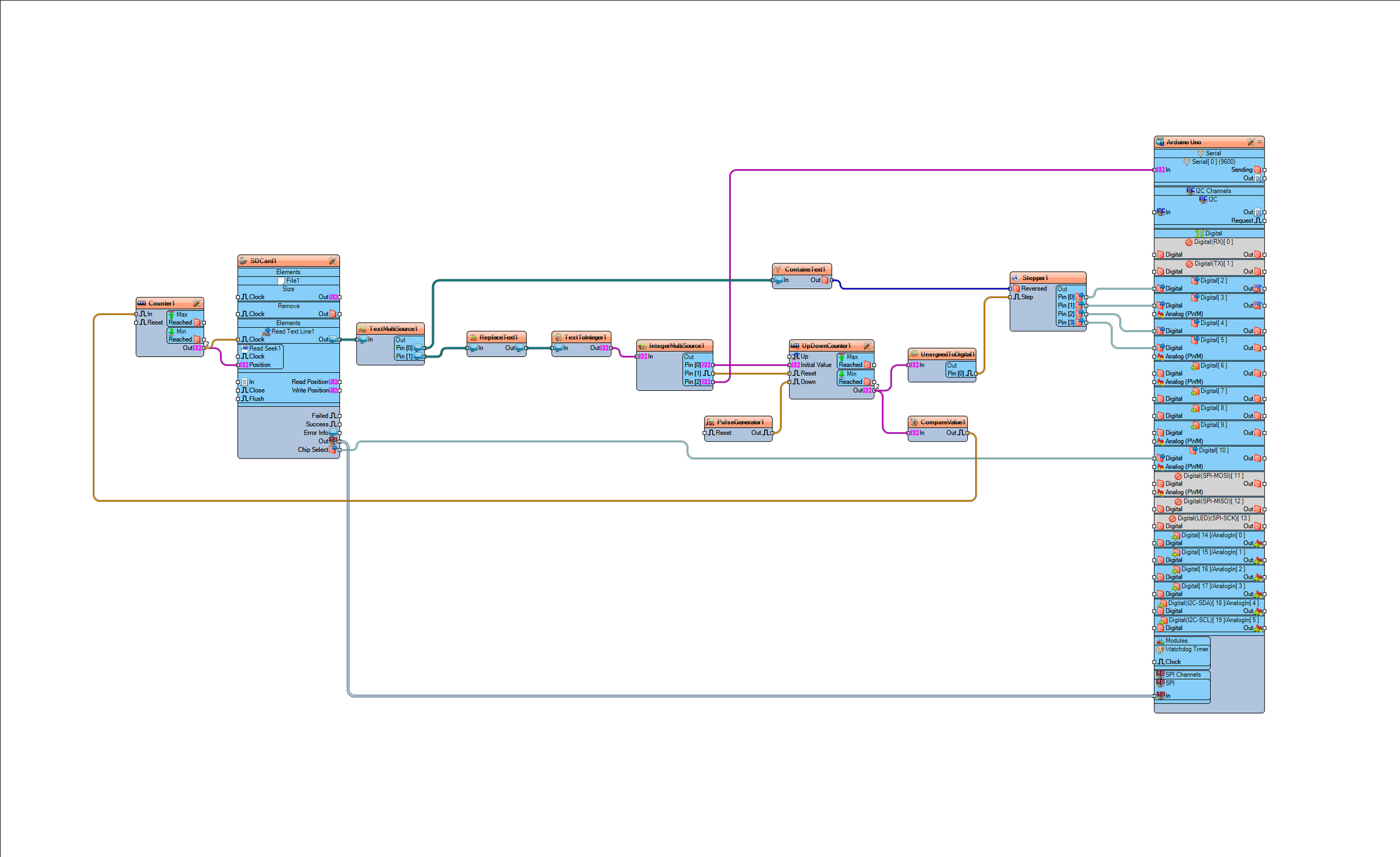
Connect "SDCard1" pin [SPI] to "Arduino" pin [SPI]
Connect "SDCard1" pin [Chip Select] to "Arduino" Digital pin [10]
Connect "Counter1" pin [Out] to "SDCard1" > "Read Seek1" pin [Position]
Connect "Counter1" pin [Out] to "SDCard1" > "Read Text Line1" pin [Clock]
Connect "SDCard1" > "Read Text Line1" pin [Out] to "TextMultiSource1" pin [In]
Connect TextMultiSource1" pin [0] to "ContainsText1" pin [In]
Connect "ContainsText1" pin [Out] to "Stepper1" pin [Enabled]
Connect TextMultiSource1" pin [1] to "ReplaceText1" pin [In]
Connect ReplaceText1" pin [Out] to "TextToInteger1" pin [In]
Connect TextToInteger1" pin [Out] to "IntegerMultiSource1" pin [In]
Connect IntegerMultiSource1" pin [0] to "UpDownCounter1" pin [Initial Value]
Connect IntegerMultiSource1" pin [1] to "UpDownCounter1" pin [Reset]
Connect PulseGenerator1" pin [Out] to "UpDownCounter1" pin [Down]
Connect "UpDownCounter1" pin [Out] to "UnsignedToDigital1" pin [In]
Connect "UpDownCounter1" pin [Out] to "CompareValue1" pin [In]
Connect "CompareValue1" pin [Out] to "Counter1" pin [In]
Generate, Compile, and Upload the Arduino Code
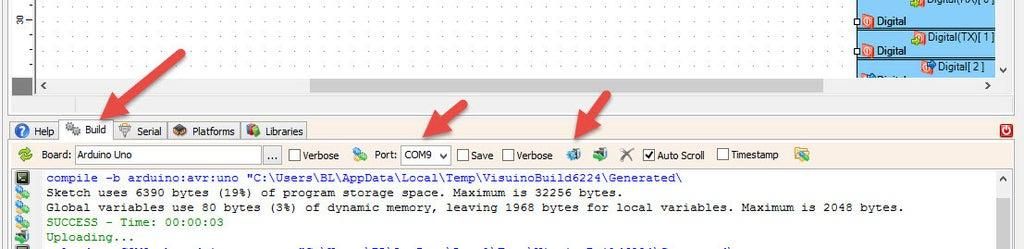
In Visuino, at the bottom, click on the "Build" tab, make sure the correct port is selected, and then click on the "Compile/Build and Upload" button.
Play
If you power the Arduino module, the positions for the stepper motor will start to rotate, and when the number of steps from the first line is reached, it will go to the next line of steps and start to rotate.
Congratulations! You have completed your project with Visuino. Also attached is the Visuino project that I created for this tutorial. You can download it and open it in Visuino: https://www.visuino.eu