






 Settings
 Fast Delivery
 Free Shipping
 Incoterms
 Payment Types


 Marketplace Product

Docker Part 1: Fixing “It Works on My Machine"
2026-04-06 | By Hector Eduardo Tovar Mendoza
Something that started happening a lot when I worked on projects with friends or teammates was the classic situation: “It works on my machine.” Everything would run perfectly on my laptop, but when someone else tried to run the same project, errors started appearing everywhere; different Python versions, missing packages, or OS differences caused things to break. For example, your project might depend on Python 3.13, but your friend only has Python 3.8 installed, and updating it would break other tools he needs, so suddenly sharing a simple project becomes complicated, and you spend more time fixing environments than actually coding. At some point, you realize the problem isn’t the code — it’s the environment you are working on.
As projects grow, they start depending on many layers: language versions, libraries, system packages, and sometimes even specific OS configurations, and if just one thing is different, your project might stop working. Instead of building features, you end up debugging installations and dependencies. Having consistent environments matters because everyone in a team needs to run the same setup, deployments should behave like development, and old projects should still run months later; otherwise, every machine becomes a different case to debug.
This is where Docker started making sense to me, because instead of sending setup instructions and hoping everything installs correctly, Docker lets you package everything your project needs — OS dependencies, language versions, libraries, configurations — inside something called a container. So if a project runs inside Docker once, it will run the same anywhere Docker is installed, and your friend doesn’t need to change Python versions or install packages globally; he just builds and runs the container, which removes a huge amount of friction when sharing projects or moving them between machines.
In this post, I want to explain what Docker is, why it helps with these problems, and give a practical understanding of how it fits into development workflows. The goal isn’t to be overly theoretical, but to show how Docker solves real problems we hit when building and sharing projects.
What is Docker?
Docker is a platform that allows you to run applications inside containers, which are lightweight environments that include everything needed for the application to run.
Instead of depending on what is installed on your computer, the application runs in its own isolated environment. You can think of it as shipping your application together with its setup, so anyone can run it without worrying about installing dependencies.
Containerization is basically packaging an application together with all the dependencies and configuration it needs, so it runs the same everywhere.
A container can include system libraries, runtime environments like Python or Node, project dependencies, and environment configurations.
Unlike virtual machines, containers don’t need to simulate an entire operating system. They share the host OS kernel, making them lighter and much faster to start.
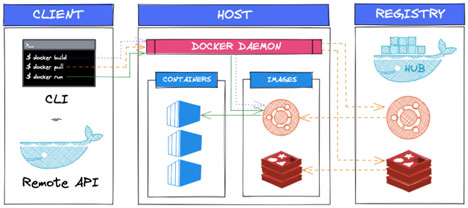
Before containers became popular, virtual machines were the common solution to environment isolation. A virtual machine runs a full operating system on top of another, which gives strong isolation but also consumes a lot of resources.
Containers are lighter because they don’t need a full OS per application. They reuse the host operating system while still isolating applications from each other.
This means containers start faster, use fewer resources, and are easier to distribute, which is why they fit so well into modern development workflows.
In practice, Docker is used in many stages of development. Teams use it so everyone works with the same environment, avoiding setup issues. It is also useful for testing, since you can quickly spin up environments without polluting your machine.
And in deployment, applications are often shipped as containers to servers or cloud platforms, ensuring they behave the same way they did in development.
Key Docker Concepts
To operate Docker effectively, it is essential to understand the four fundamental components that comprise its ecosystem. These elements work in unison to build, ship, and run applications consistently.
Docker Image
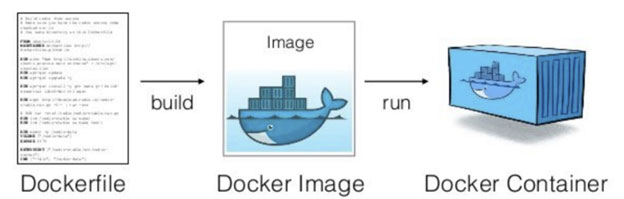
A Docker Image is the fundamental unit of deployment in Docker. It acts as an immutable, read-only template that contains the application code, libraries, dependencies, tools, and other files needed for an application to run.
Think of an image as a snapshot of a specific environment at a specific point in time. Because images are read-only, they ensure consistency; an image built on one machine will contain the exact same data when transferred to another. Common examples include:
- nginx: Contains the Nginx web server software and default configuration.
- node: Contains a specific version of the Node.js runtime and npm.
- mysql: Contains the MySQL database server.
Docker Container
If the image is a class in object-oriented programming, the Docker Container is the instance. A container is a runnable, active instantiation of an image.
When you "run" an image, Docker creates a container, effectively adding a writable layer on top of the read-only image. This allows the application to execute, modify files in memory, and generate logs. Despite running on the host machine, the container remains isolated from the underlying infrastructure and other containers, ensuring that processes within the container cannot interfere with the host system.
Dockerfile
The Dockerfile is a text document that contains all the commands a user could call on the command line to assemble an image. It serves as the automated blueprint for building a Docker Image.
This file defines the base operating system (e.g., FROM ubuntu:20.04), installs dependencies (e.g., RUN apt-get install python3), and specifies which commands to run when the container starts. The Dockerfile is critical because it enables Infrastructure as Code (IaC), allowing the environment build process to be version-controlled, shared, and reproduced automatically.
Installing Docker
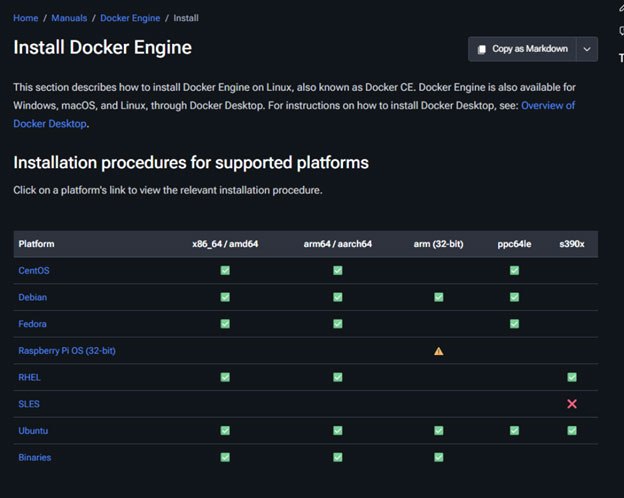
When installing Docker, you’ll typically choose between two options: Docker Engine and Docker Desktop.
Docker Engine is intended primarily for Linux distributions such as CentOS, Fedora, Ubuntu, and others. Personally, this is my preferred setup when working on Linux because the installation is straightforward and, in my experience, it runs smoothly without issues.
Docker Desktop, on the other hand, is designed for macOS and Windows users. One drawback I’ve noticed is that Docker commands won’t run unless Docker Desktop is open. Since I prefer to keep my workspace minimal and avoid having unnecessary applications open, this can sometimes feel inconvenient.
So, the first step is simply deciding which version suits your system. From there, search for the installation guide corresponding to either Docker Engine or Docker Desktop, depending on the operating system you’re using.
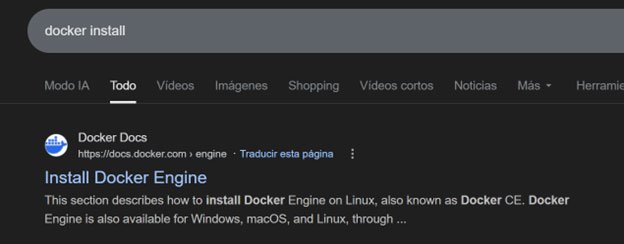
Here, for the engine, you will click on your OS, and it will guide you step by step with each command to write down on the terminal.
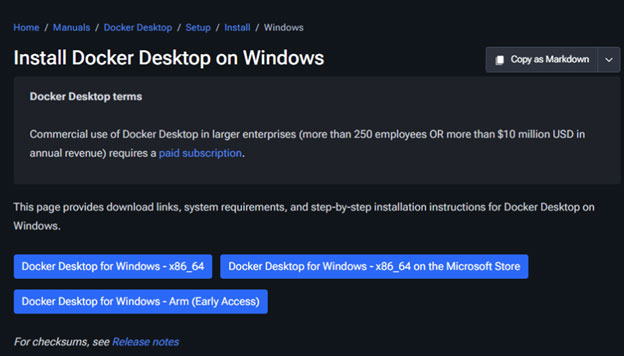
Here is the typical .exe file. Simply download it, click on the file, and it will guide you through the installation process.
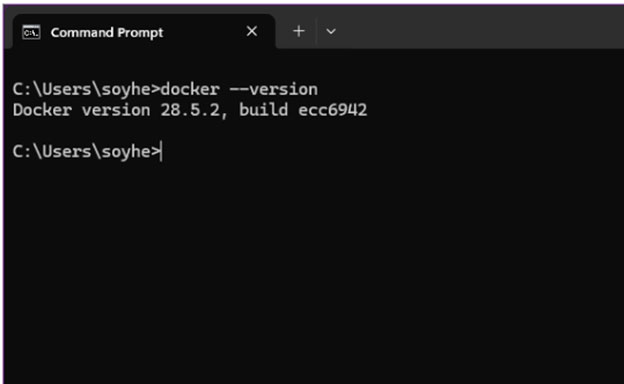
To verify that Docker was installed correctly—whether you chose Docker Engine or Docker Desktop—open your terminal and run:
docker --version
If Docker is properly installed, the terminal will display the installed version number.
In some cases, especially with Docker Engine on Linux, you may also be prompted to run a test container. This typically pulls a small test image and prints a confirmation message similar to:
Hello from Docker! This message shows that your installation appears to be working correctly.
Seeing this message confirms that Docker is installed and running successfully, and you’re ready to start working with containers.
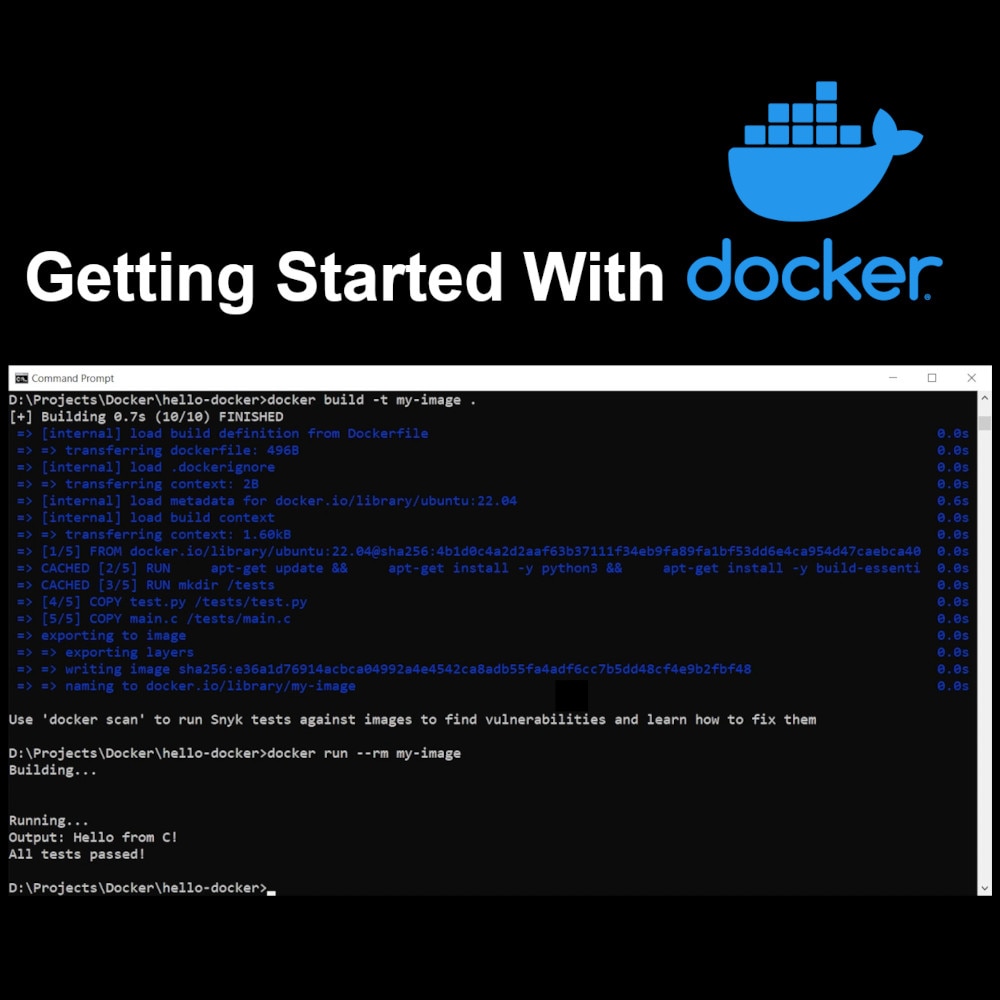
What’s Next? Now that we understand the architecture and have Docker installed, we are ready to get our hands dirty. In Part 2, we will write our first Dockerfile, build a custom Python application, and learn the essential commands to manage our containers.
Hector Tovar, RoBorregos, Monterrey, Mexico









 Japan
Japan